Run Vantage Express on VMware
You can now get a hosted instance of Vantage for free at https://www.teradata.com/try.
Overview
This how-to shows how to gain access to a Teradata database by running it on your local machine. Once you finish the steps you will have a working Teradata Vantage Express database on your computer.
Starting with version 17.20, Vantage Express includes the following analytics packages: Vantage Analytics Library, Bring Your Own Model (BYOM), API Integration with AWS SageMaker.
Prerequisites
- A computer running one of the following operating systems: Windows, Linux, or Intel-based macOS.
Note
For M1/M2 macOS systems, see Run Vantage Express on UTM.
- At least 30GB of available disk space, sufficient CPU resources, and enough RAM to allocate at least one core and 6GB of memory to the virtual machine.
- Administrator rights to install and run software on your system.
Installation
Download required software
- The latest version of Vantage Express. If you have not previously used the Teradata downloads website, you will need to create an account.
- VMware Workstation Pro.
-
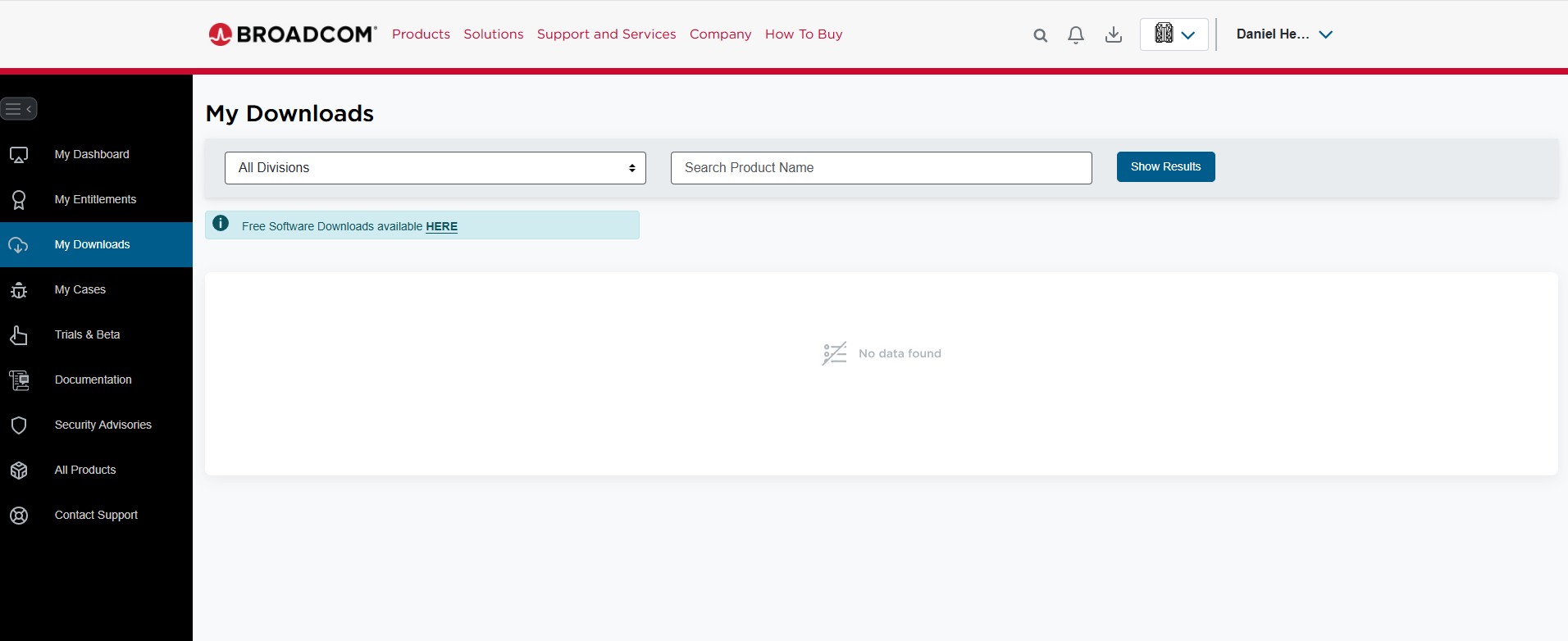
Log in to support.broadcom.com and click the Free Software Downloads available HERE link.
-
VMware Workstation Pro is now available as a free download for both personal and commercial use.
-
Run installers
- Run the VMware Workstation Pro installer and accept the default values to complete the installation.
Run Vantage Express
- Navigate to the directory where you downloaded Vantage Express and double-click the
.ovafile to launch the VM image in VMware Workstation Pro.
- Press [ENTER] to select the highlighted
LINUXboot partition.

- On the next screen, press ENTER again to select the default SUSE Linux kernel.

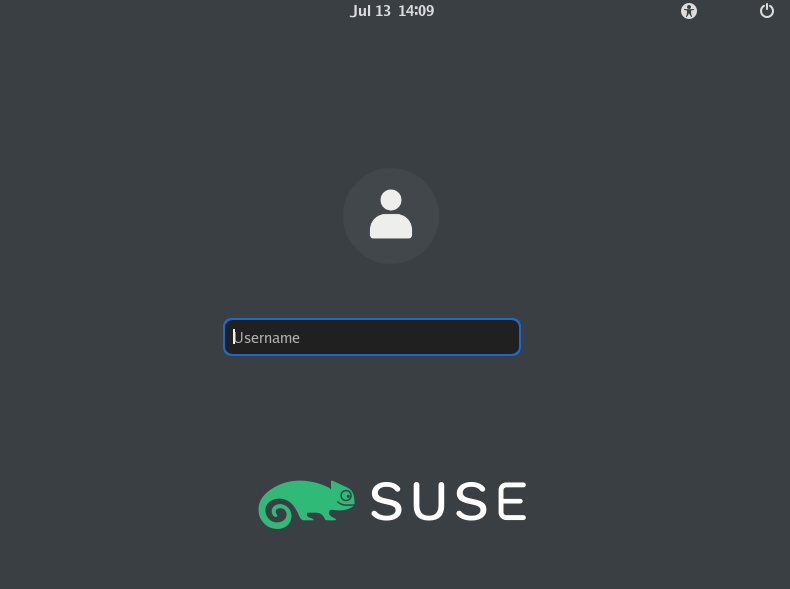
- Once the VM is up, you will see its desktop environment. When prompted for a username and password, enter
rootfor both.
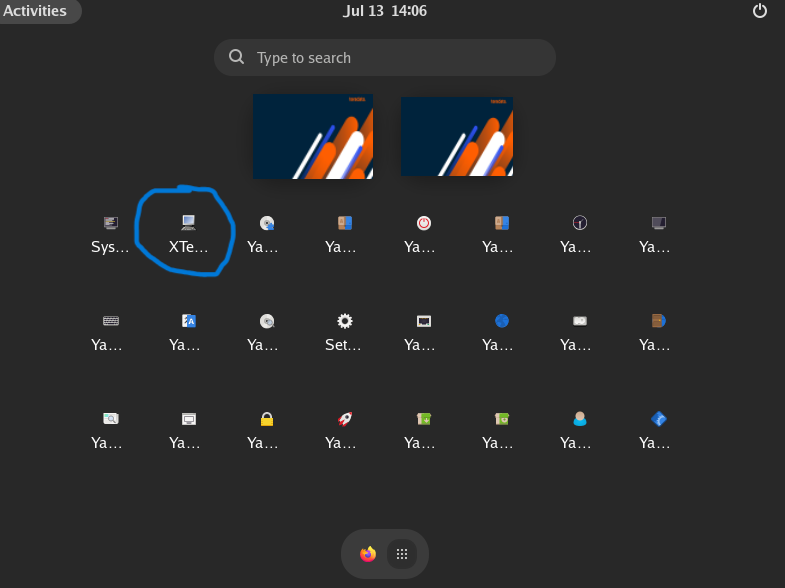
- The database is configured to autostart with the VM. To confirm that the database has started, go to the virtual desktop and start a terminal.
- In the terminal, execute the
pdestatecommand to check if Vantage has already started:
Wait until you see the following message:
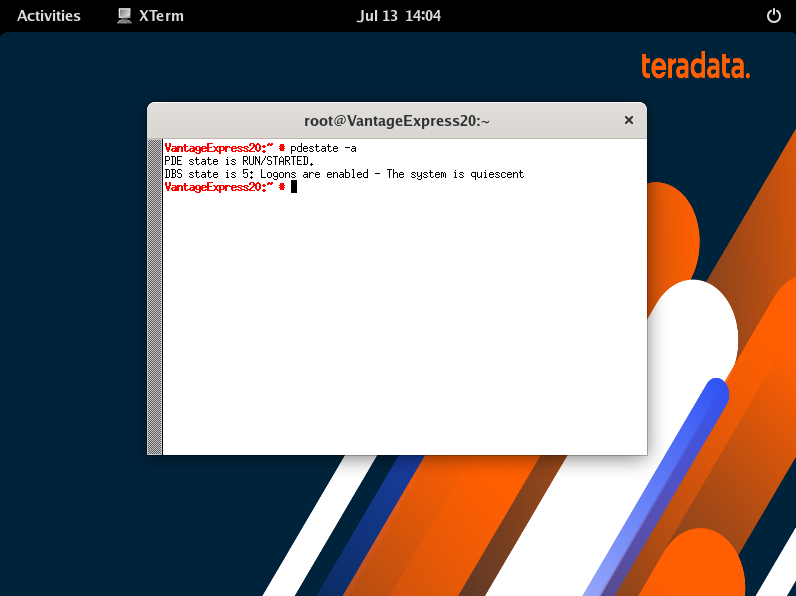
See examples of messages that pdestate returns when the database is still initializing:
PDE state is DOWN/HARDSTOP.
PDE state is START/NETCONFIG.
PDE state is START/GDOSYNC.
PDE state is START/TVSASTART.
PDE state is START/READY. PDE state is RUN/STARTED.
DBS state is 1/1: DBS Startup - Initializing DBS Vprocs PDE state is RUN/STARTED.
DBS state is 1/5: DBS Startup - Voting for Transaction Recovery PDE state is RUN/STARTED.
DBS state is 1/4: DBS Startup - Starting PE Partitions PDE state is RUN/STARTED.
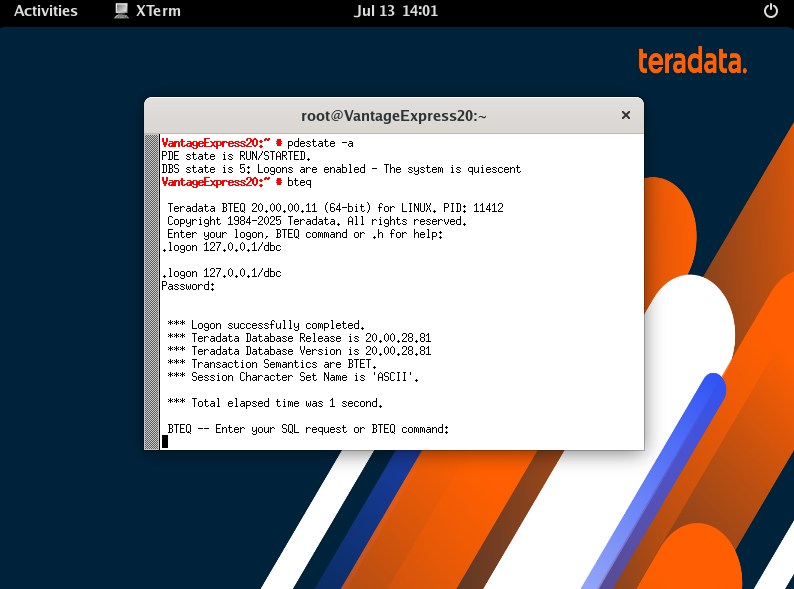
- Now that the database is up, you can log in to it:
- At the shell prompt, type
bteq. - At the logon prompt, type
.logon 127.0.0.1/dbc. - At the password prompt, type
dbc.- If successful, the Basic Teradata Query (BTEQ) session confirms that you are logged into BTEQ.
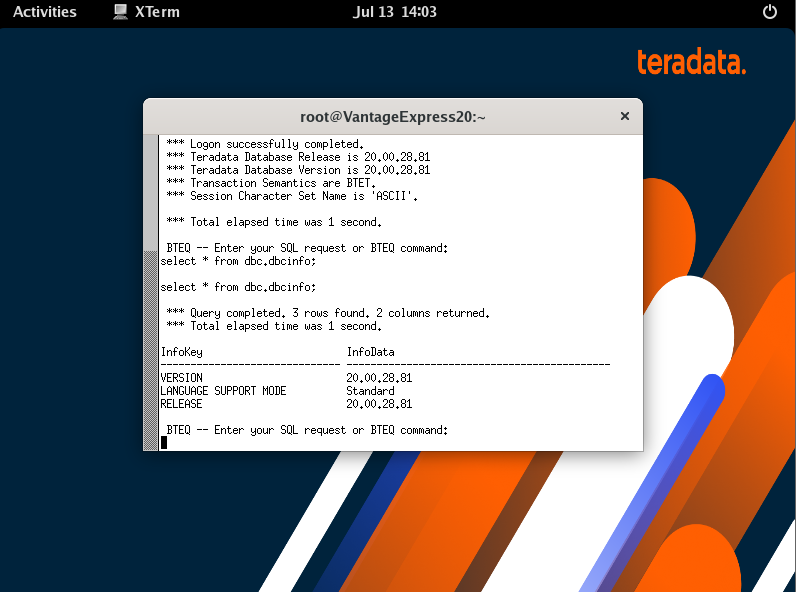
- Run the SQL test script by typing the following:
- A successful test returns:
*** Query completed.
Summary
This guide demonstrates how to quickly set up a working Teradata environment using Teradata Vantage Express running in a virtual machine on VMware Workstation Pro.