Use Teradata from a Jupyter notebook
This how-to shows you how to add Teradata Extensions to a Jupyter Notebooks environment. A hosted version of Jupyter Notebooks integrated with Teradata Extensions and analytics tools is available for functional testing for free at https://www.teradata.com/try.
Overview
In this how-to we will go through the steps for connecting to Teradata from a Jupyter notebook.
If you need a test instance of Teradata, you can provision one for free at https://www.teradata.com/try
Options
There are a couple of ways to connect to Teradata from a Jupyter Notebook:
- Use python or R libraries in a regular Python/R kernel notebook - this option works well when you are in a restricted environment that doesn't allow you to spawn your own Docker images. Also, it's useful in traditional datascience scenarios when you have to mix SQL and Python/R in a notebook. If you are proficient with Jupyter and have your own set of preferred libraries and extensions, start with this option.
- Use the Teradata Jupyter Docker image - the Teradata Jupyter Docker image bundles the Teradata SQL kernel (more on this later),
teradatamlandtdplyrlibraries, python and R drivers. It also contains Jupyter extensions that allow you to manage Teradata connections, explore objects in Teradata. It's convenient when you work a lot with SQL or would find a visual Navigator helpful. If you are new to Jupyter or if you prefer to get a currated assembly of libraries and extensions, start with this option.
Teradata libraries
This option uses a regular Jupyter Lab notebook. We will see how to load the Teradata Python driver and use it from Python code. We will also examine the jupysql extension that adds support for SQL-only cells.
- We start with a plain Jupyter Lab notebook. Here, we're using docker but any method of starting a notebook, including Jupyter Hub, Google Cloud AI Platform Notebooks, AWS SageMaker Notebooks, Azure ML Notebooks will do.
- Docker logs will display the url that you need to go to:
- We will open a new notebook and create a cell to install the required libraries:
We've published a notebook with all the cells described below on GitHub: https://github.com/Teradata/quickstarts/blob/main/modules/ROOT/attachments/vantage-with-python-libraries.ipynb
- Now, we will import
Pandasand define the connection string to connect to Teradata.
The connection string format is teradatasql://username:password@host/database. Replace <host>, <username>, and <password> with your Teradata instance details. If you are connecting to a local Vantage Express VM from inside Docker on the same machine, use the special host.docker.internal hostname that Docker provides to reach the host machine.
- Now we can call Pandas to query Teradata and move the result to a Pandas dataframe:
- The syntax above is concise but it can get tedious if all you need is to explore data in Teradata. We will use
jupysqland its%%sqlmagic to create SQL-only cells. We start with installing the required libraries.
jupysql is the actively maintained successor to ipython-sql. It provides the same %sql / %%sql magic API and is compatible with current versions of all dependencies.
- We load
jupysqland define the db connection string:
- We can now use
%sqland%%sqlmagic. Let's say we want to explore data in a table. We can create a cell that says:
- If we want to move the data to a Pandas frame, we can say:
There are many other features that jupysql provides, including variable substitution, plotting with matplotlib, writing results to a local csv file or back to the database. See the demo notebook for examples and jupysql documentation for a complete reference.
Teradata Jupyter Docker image
The Teradata Jupyter Docker image builds on quay.io/jupyter/datascience-notebook Docker image. It adds the Teradata SQL kernel, Teradata Python and R libraries, Jupyter extensions to make you productive while interacting with Teradata. The image also contains sample notebooks that demonstrate how to use the SQL kernel and Teradata libraries.
The SQL kernel and Teradata Jupyter extensions are useful for people that spend a lot of time with the SQL interface. Think about it as a notebook experience that, in many cases, is more convenient than using Teradata Studio. The Teradata Jupyter Docker image doesn't try to replace Teradata Studio. It doesn't have all the features. It's designed for people who need a lightweight, web-based interface and enjoy the notebook UI.
The Teradata Jupyter Docker image can be used when you want to run Jupyter locally or you have a place where you can run custom Jupyter docker images. The steps below demonstrate how to use the image locally.
- Run the image:
By passing -e "accept_license=Y" you accept the license agreement for Teradata Jupyter Extensions.
- Docker logs will display the url that you need to go to. For example, this is what we've got:
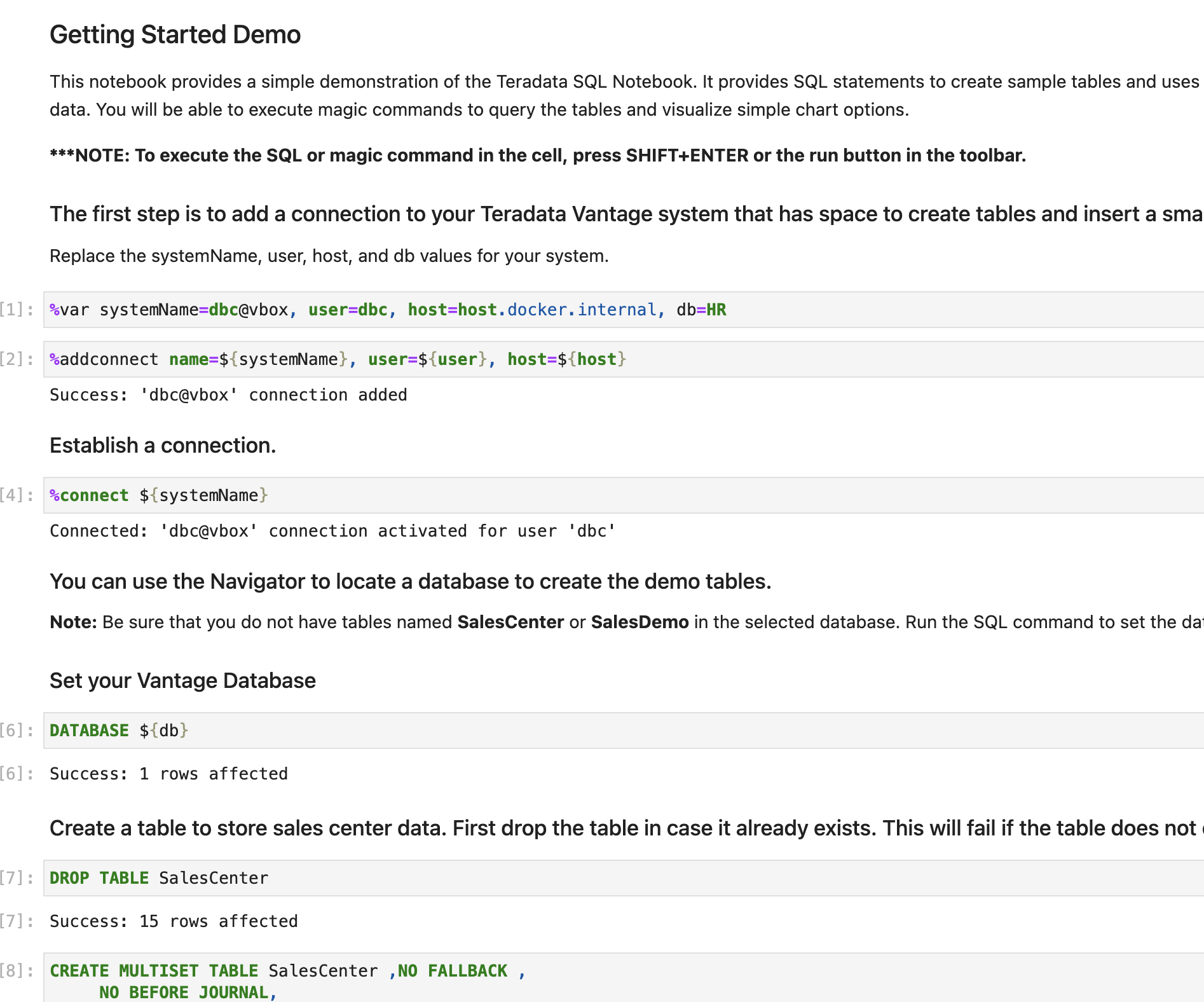
- Open up the URL and use the file explorer to open the following notebook:
jupyterextensions -> notebooks -> sql -> GettingStartedDemo.ipynb. - Go through the demo of the Teradata SQL Kernel:
Steps 3 and 4 require a desktop browser. If you are running in a headless or server environment, you can connect to Teradata programmatically using the teradataml Python library — see Option 1 for an example that works without a browser.
Summary
This quick start covered different options to connect to Teradata from a Jupyter Notebook. We learned about the Teradata Jupyter Docker image that bundles multiple Teradata Python and R libraries. It also provides an SQL kernel, database object explorer and connection management. These features are useful when you spend a lot of time with the SQL interface. For more traditional data science scenarios, we explored the standalone Teradata Python driver and integration through the jupysql extension.