Use Amazon SageMaker AI with Teradata
Overview
This how-to will help you to integrate Amazon SageMaker AI with Teradata. The approach this guide explains is one of many potential approaches to integrate with the service.
Amazon SageMaker AI provides a fully managed Machine Learning Platform. There are two use cases for Amazon SageMaker AI and Teradata:
-
Data resides on Teradata and Amazon SageMaker AI will be used for both the Model definition and subsequent scoring. Under this use case Teradata will provide data into an Amazon S3 bucket so that Amazon SageMaker AI can consume training and test data sets for the purpose of model development. Teradata would further make data available via Amazon S3 for subsequent scoring by Amazon SageMaker AI. Under this model Teradata is a data repository only.
-
Data resides on Teradata and Amazon SageMaker AI will be used for the Model definition, and Teradata for the subsequent scoring. Under this use case Teradata will provide data into an Amazon S3 bucket so that Amazon SageMaker AI can consume training and test data sets for the purpose of model development. Teradata will need to import the Amazon SageMaker AI model into a Teradata table for subsequent scoring. Under this model Teradata is a data repository and a scoring engine.
The first use case is discussed in this document.
Amazon SageMaker AI consumes training and test data from an Amazon S3 bucket. This article describes how you can load Teradata analytics data sets into an Amazon S3 bucket. The data can then be available to Amazon SageMaker AI to build and train machine learning models and deploy them into a production environment.
Prerequisites
- Access to a Teradata instance.
Note
If you need a test instance of Teradata, you can provision one for free at https://www.teradata.com/try
- IAM permissions to access the Amazon S3 bucket and use Amazon SageMaker AI.
- An Amazon S3 bucket to store training data.
Load data
Amazon SageMaker AI trains machine learning models using data stored in an Amazon S3 bucket. Follow these steps to load training data from Teradata into an Amazon S3 bucket:
- In the Amazon SageMaker AI console, select
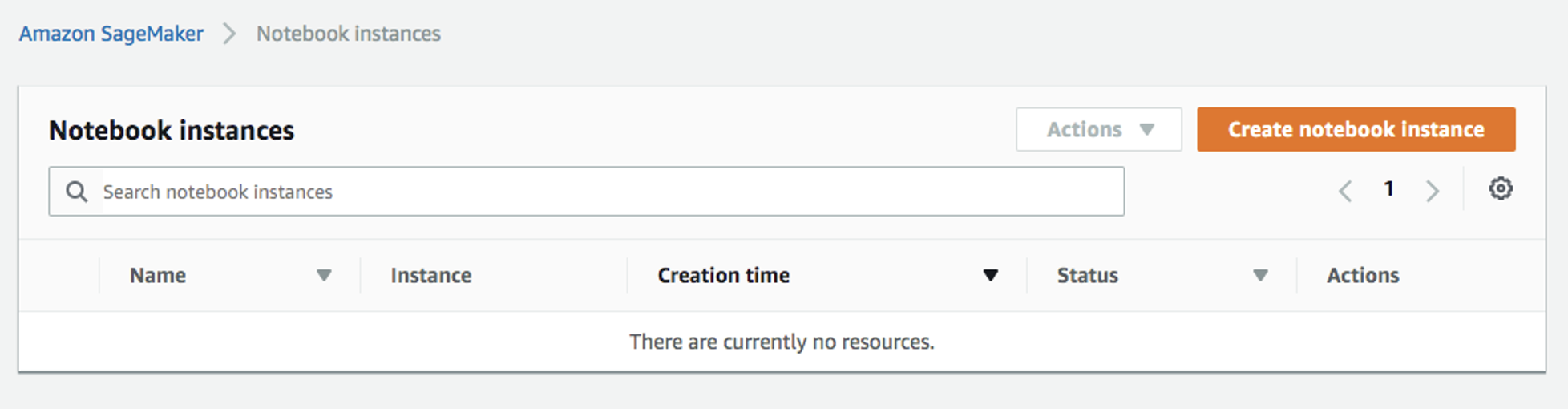
Applications and IDEs->Notebooks->Notebook instances, and then selectCreate notebook instance. See the Amazon SageMaker AI Developer Guide for instructions on how to create a notebook instance:
-
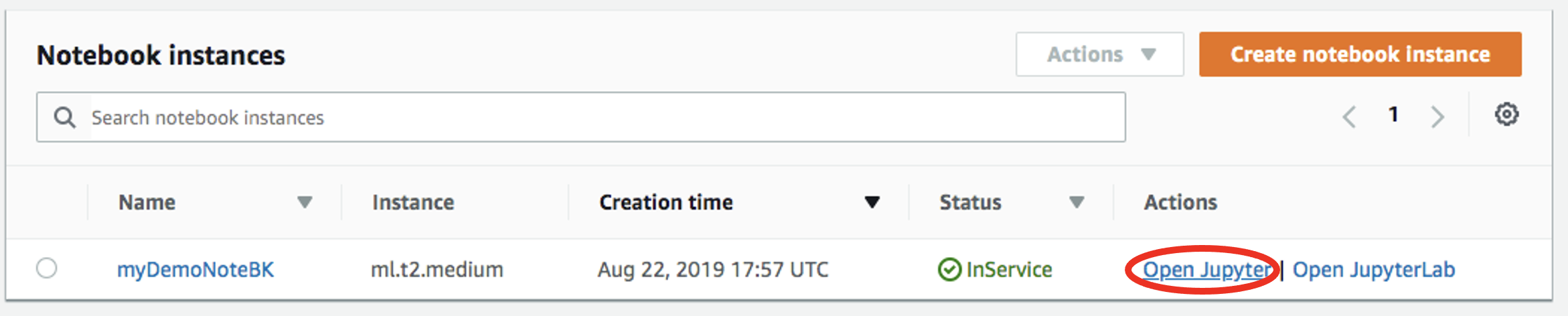
Open your notebook instance:
-
Start a new file by clicking on
New -> conda_python3: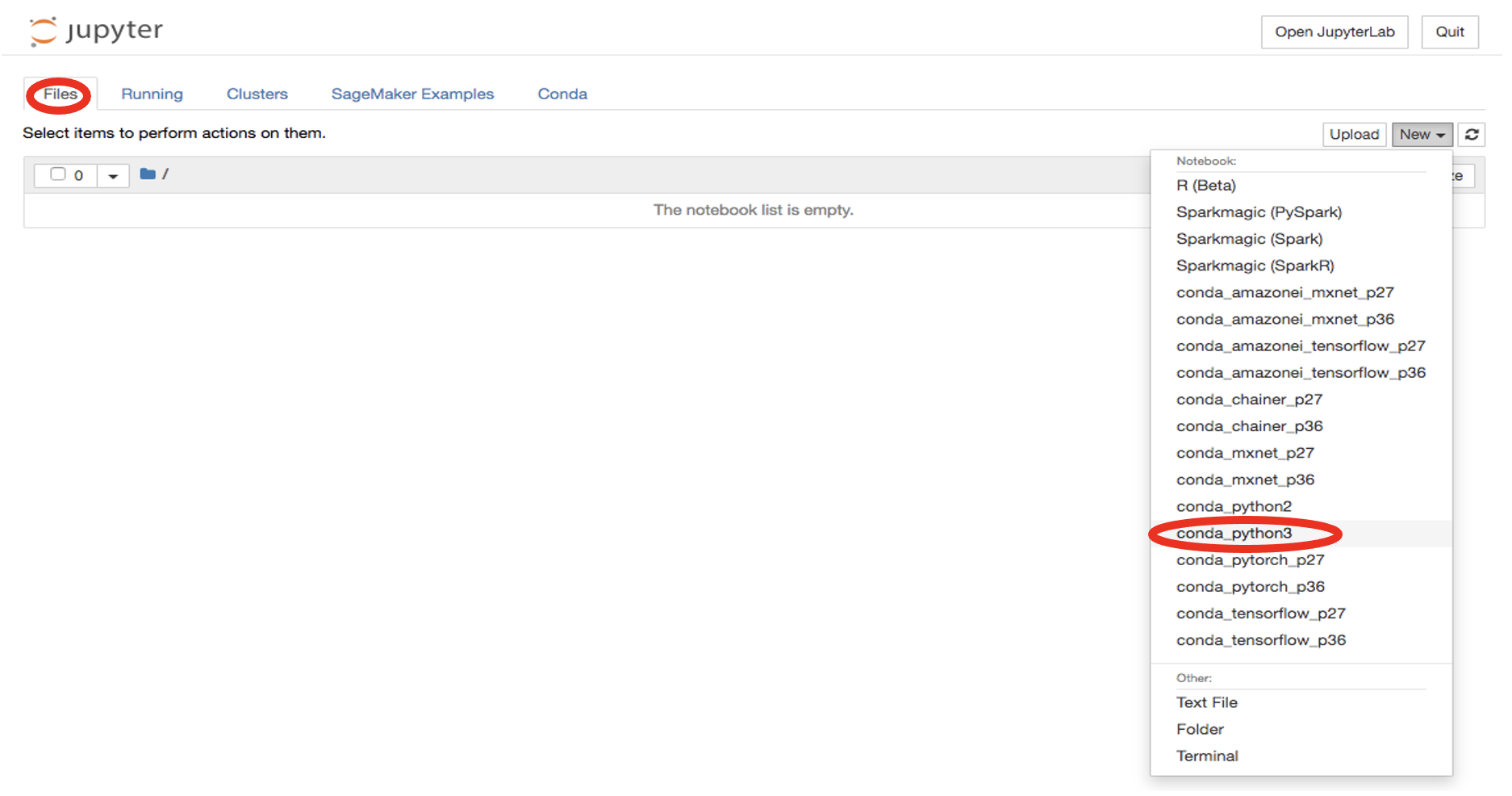
-
Install Teradata Python library:
-
In a new cell and import additional libraries:
-
In a new cell, connect to Teradata. Replace
<hostname>,<database user name>,<database password>to match your Teradata environment: -
Retrieve data from the table where the training dataset resides using TeradataML DataFrame API:
NoteFor the XGBoost training job used in this how-to, place the target column first and encode categorical values as numeric values before exporting the data. The CSV file must not contain a header row.
-
Write data to a local file:
-
Upload the file to Amazon S3. Replace
<s3_bucket_name>with the name of your Amazon S3 bucket:
Train the model
-
In the Amazon SageMaker AI console, select
Model training & customization->Training & tuning jobs->Training jobsfrom the left menu, and then selectCreate training job: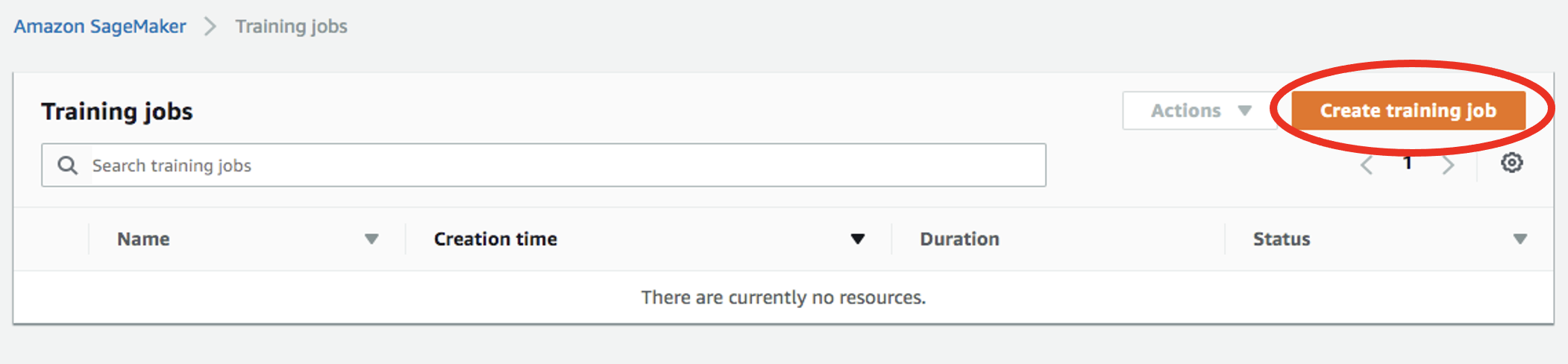
-
In the
Create training jobwindow, enter a job name, such asxgboost-bank. For the IAM role, select an existing SageMaker execution role with access to the Amazon S3 bucket, or selectCreate a new role. When creating a new role, chooseAny S3 bucket, and then selectCreate role: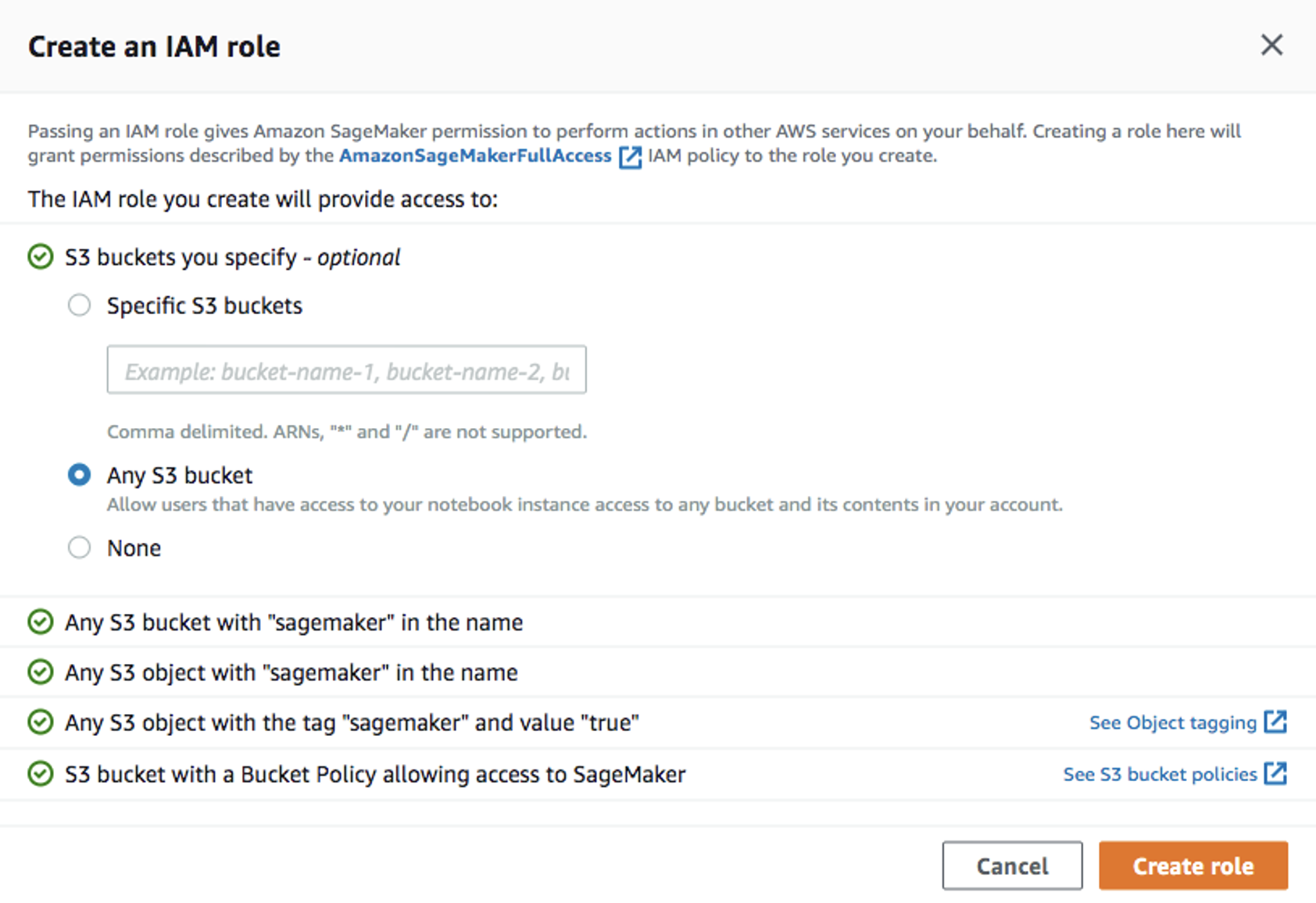
-
For the algorithm, select
Tabular – XGBoost : v1.3: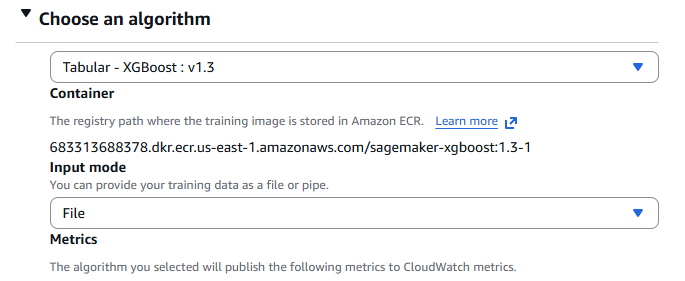
-
Under
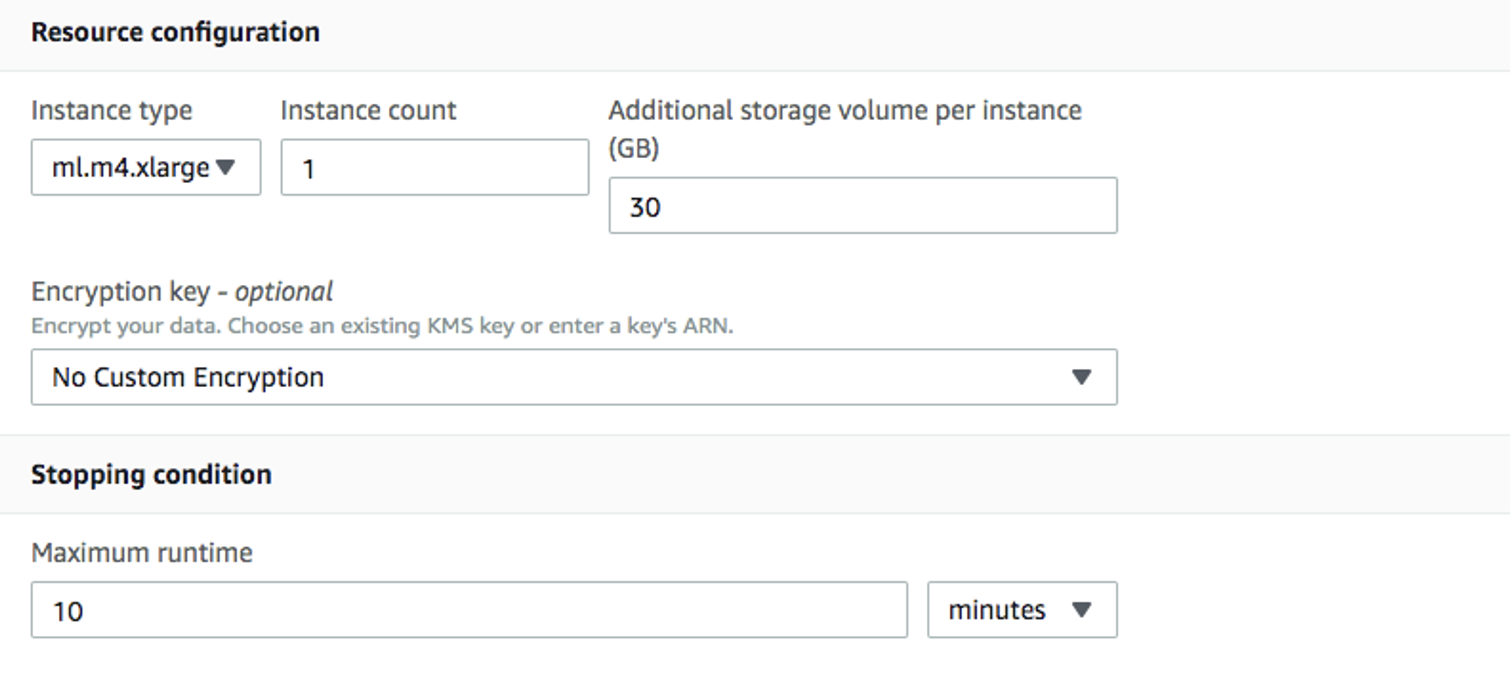
Resource configuration, use the following values:- Instance type:
ml.m4.xlarge - Instance count:
1 - Storage volume:
30 GB - Maximum runtime:
1 hour - Keep alive period:
0 seconds
This is a short training job and should typically complete within 10 minutes.
- Instance type:
-
Enter the following hyperparameters and leave the remaining settings at their default values:
-
Under
Input data configuration, use the following values:- Channel name:
train - Input mode:
File - S3 data type:
S3Prefix - Distribution:
FullyReplicated - Data format:
csv - S3 location: The Amazon S3 prefix containing
train.csv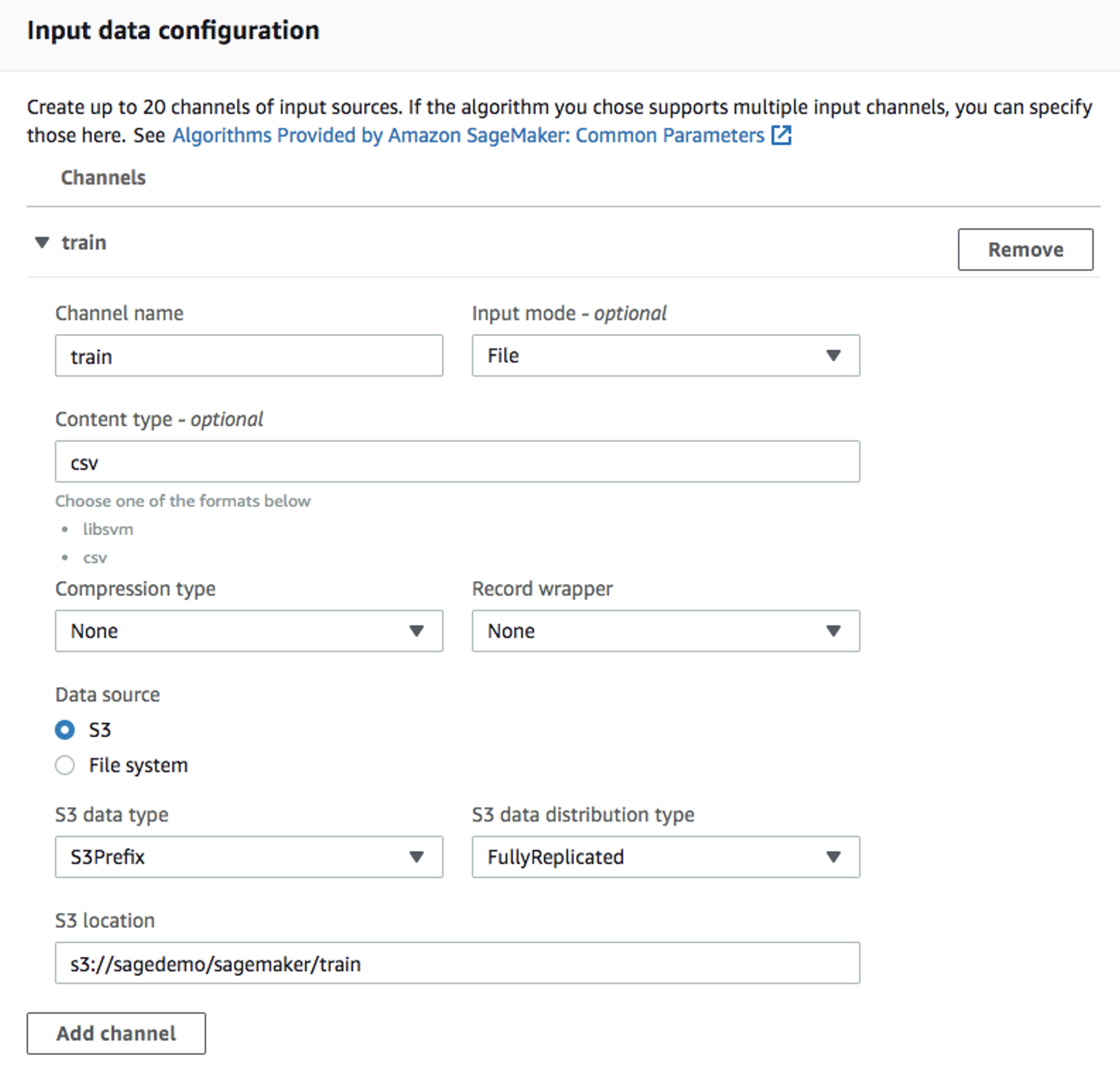
- Channel name:
-
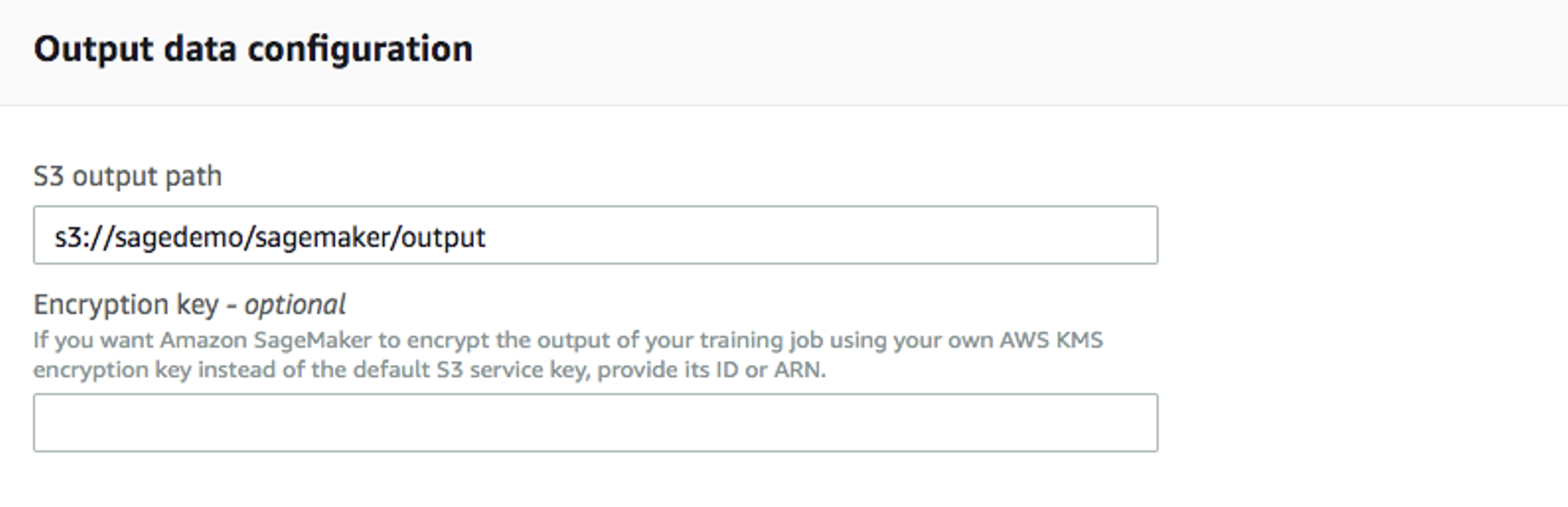
Under
Output data configuration, enter the Amazon S3 location where Amazon SageMaker AI will store the model artifacts:
- Leave the remaining settings at their default values and select
Create training job. For detailed instructions on configuring a training job, see the Amazon SageMaker AI Developer Guide.
After the training job is created, Amazon SageMaker AI launches the ML instance and trains the model. When the training job is complete, Amazon SageMaker AI stores the resulting model artifact in the configured Amazon S3 output location:
<output-path>/<training-job-name>/output/model.tar.gz
Deploy the model
After you train the model, deploy it to a real-time endpoint.
Create a model
-
In the Amazon SageMaker AI console, select
Deployments & inference->Deployable modelsfrom the left menu, and then selectCreate model. -
Enter a model name, such as
xgboost-bank, and select the IAM role created or used for the training job. -
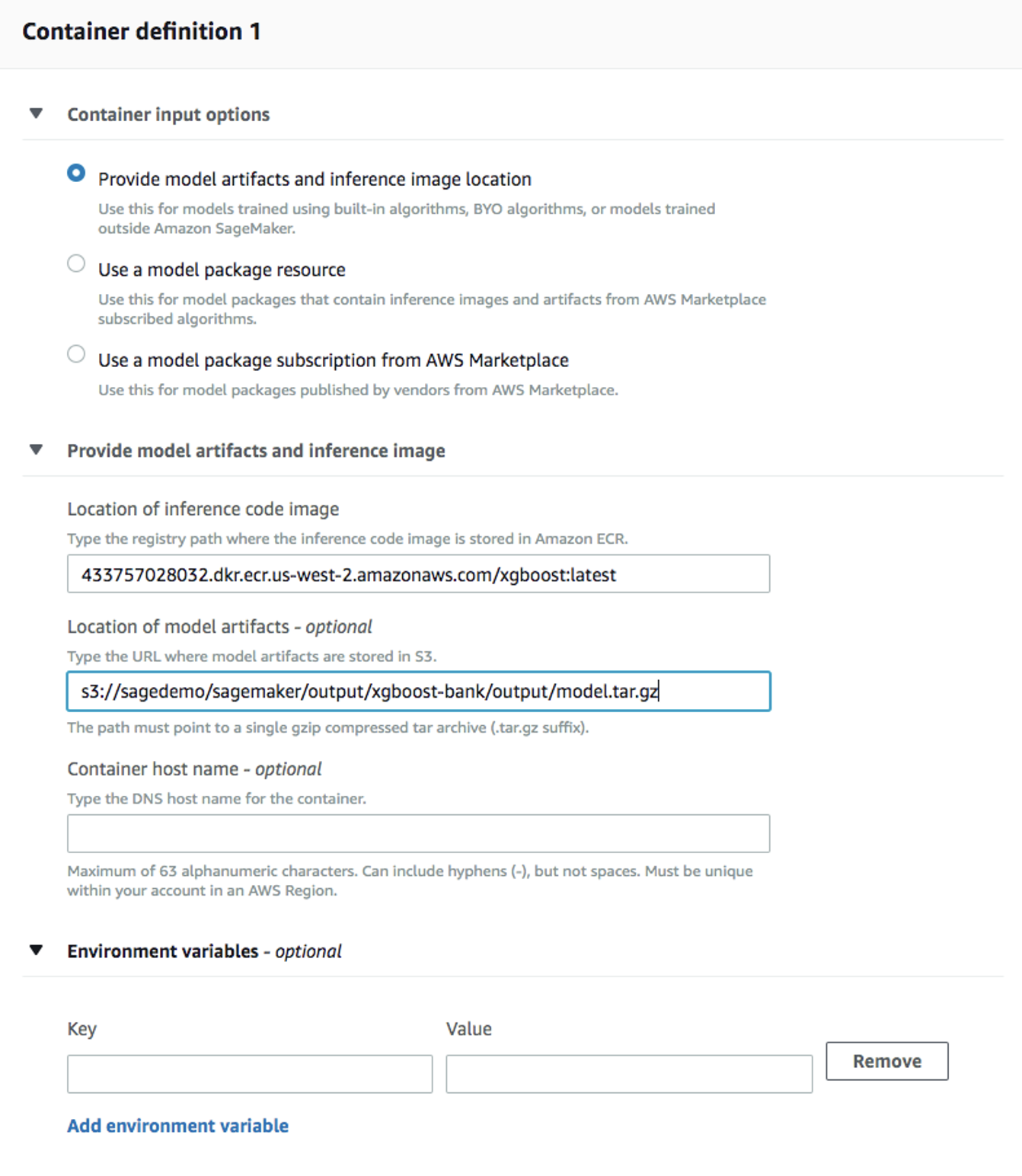
Under
Container definition 1, configure the following:-
For
Container input options, selectProvide model artifacts and inference image location. -
Select
Use a single model. -
For
Location of inference code image, enter the XGBoost1.3-1inference image URI for your AWS Region. For information about retrieving an XGBoost image URI, see How to use SageMaker AI XGBoost. -
For
Location of model artifacts, enter the complete Amazon S3 path to the model artifact generated by the training job: -
For
Model compression type, selectCompressedModel.
-
- Leave the remaining settings at their default values and select
Create model.
Create an endpoint configuration
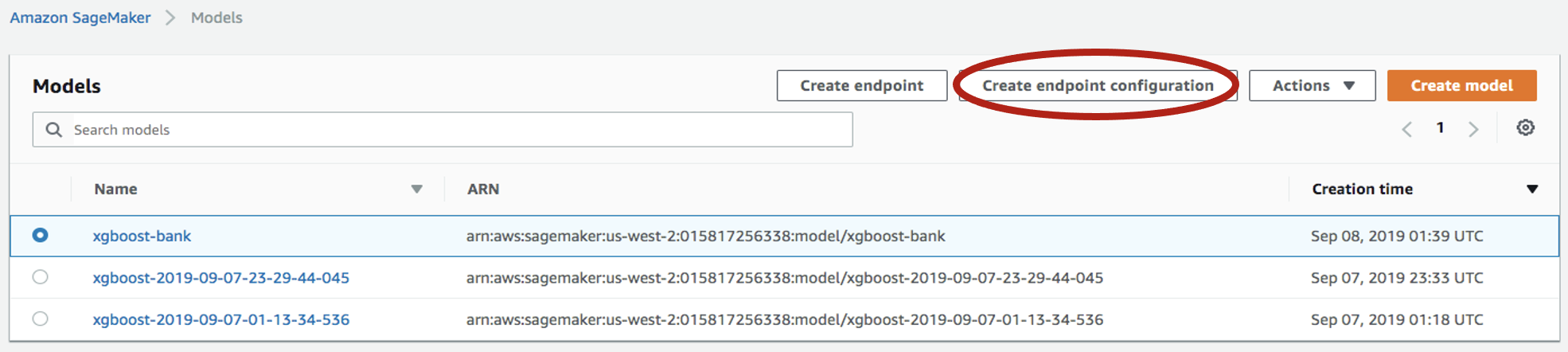
- Select the model you just created, and then select
Create endpoint configuration:
- Enter a name, such as
xgboost-bank, and leave the remaining settings at their default values. The model is automatically populated underVariants. SelectCreate endpoint configuration.
Create endpoint
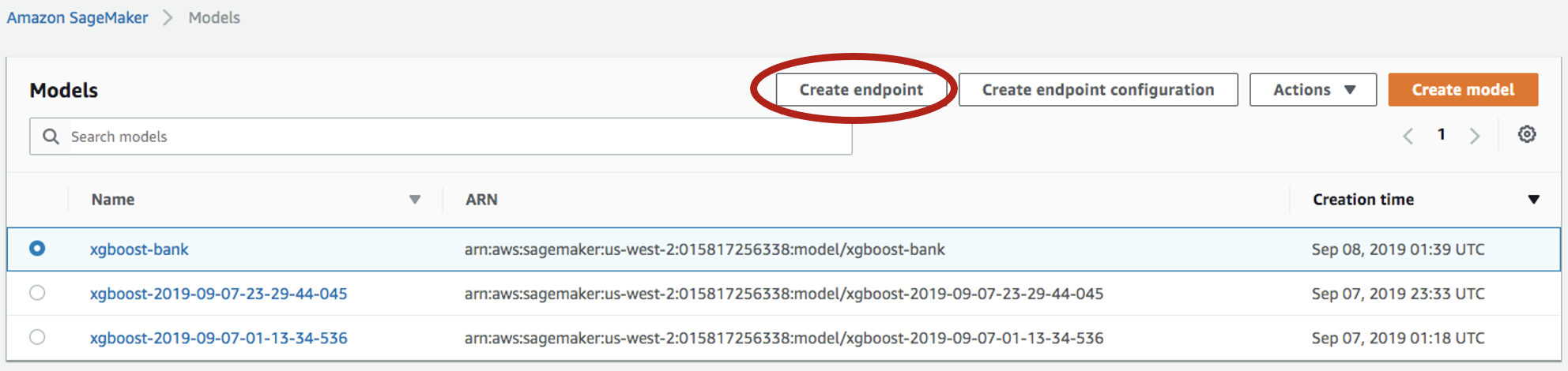
- In the Amazon SageMaker AI console, select
Deployments & inference->Deployable modelsfrom the left menu. Select the model again, and then selectCreate endpoint:
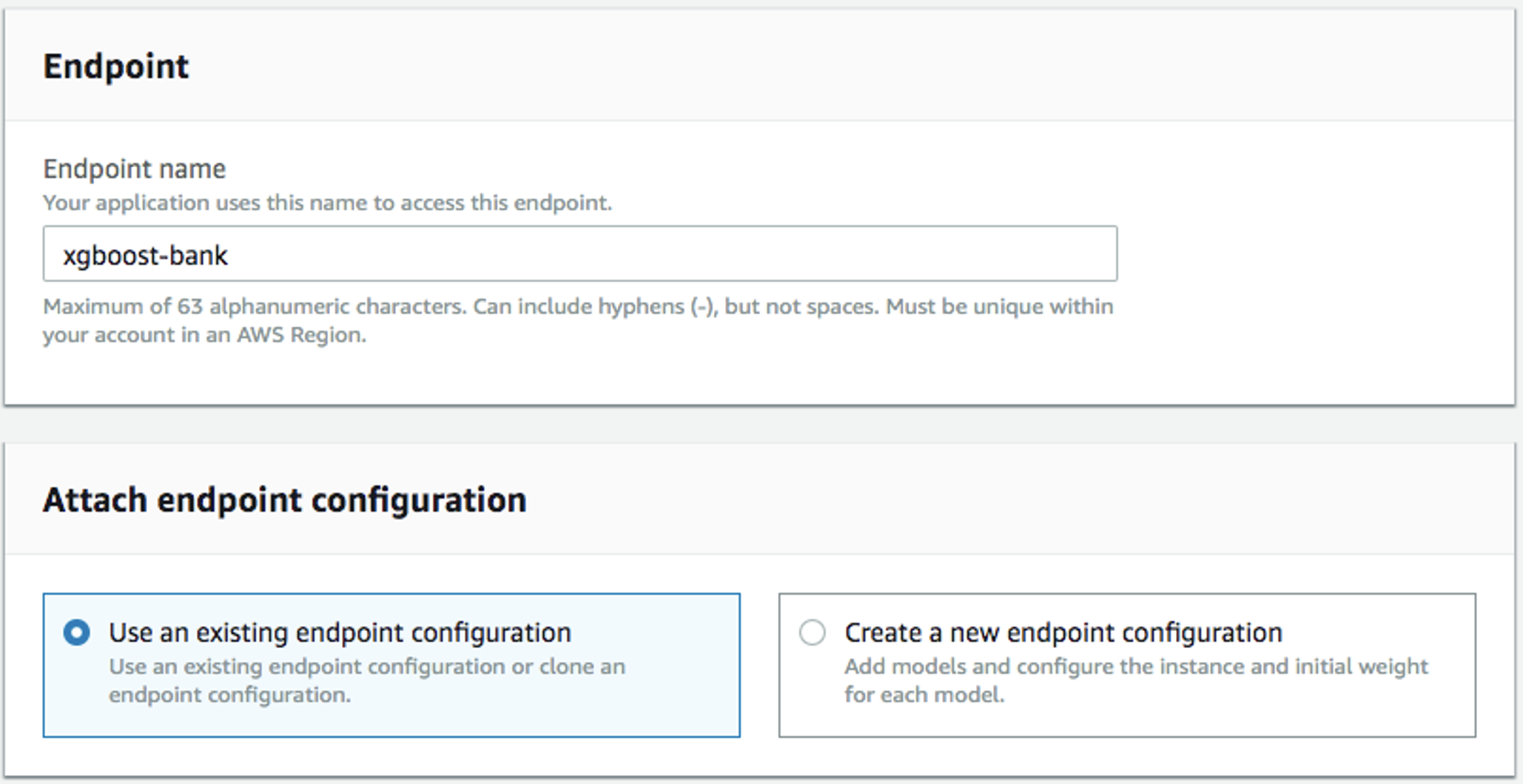
- Enter a name, such as
xgboost-bank, and selectUse an existing endpoint configuration:
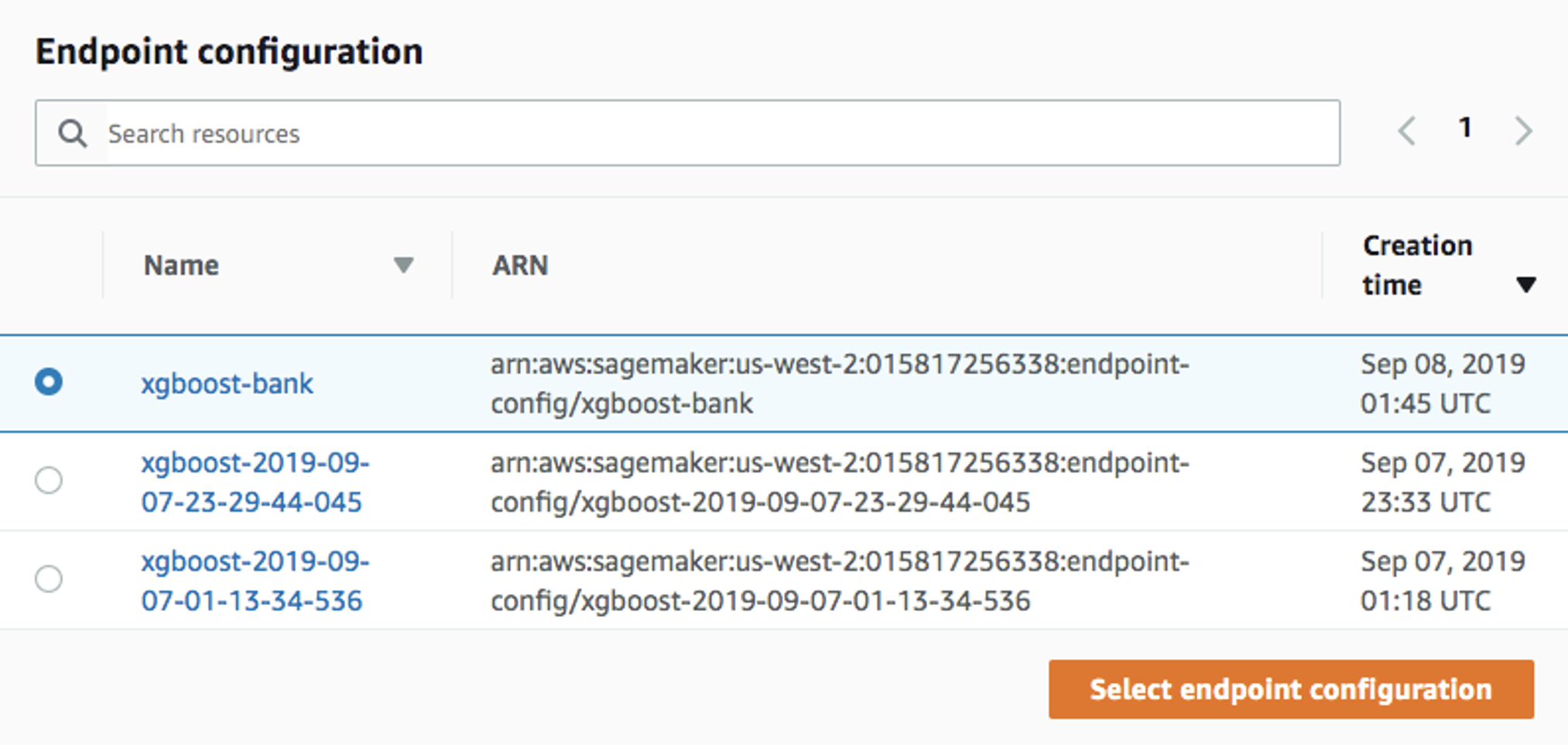
- Select the endpoint configuration created in the previous step, and then select
Select endpoint configuration:
- Leave the remaining settings at their default values and select
Create endpoint.
Wait until the endpoint status changes to InService. The model is then deployed to the endpoint and can be used by client applications.
A real-time endpoint incurs charges while it is running. Delete the endpoint when you no longer need it.
Summary
This how-to demonstrated how to extract training data from Teradata and use it to train a model in Amazon SageMaker AI. The solution used a Jupyter notebook to extract data from Teradata and upload it to an Amazon S3 bucket. An Amazon SageMaker AI training job read the data from the Amazon S3 bucket and produced a model. The model was then deployed to an Amazon SageMaker AI real-time endpoint.