Data Transfer from Azure Blob to Teradata Using dagster-teradata
Overview
This quickstart shows how to transfer data in CSV, JSON, and Parquet formats from Microsoft Azure Blob Storage to Teradata using dagster-teradata.
The example uses a public Azure Blob Storage dataset that is accessible through Teradata Native Object Store (NOS). An Azure account is not required to run the example.
Prerequisites
-
Access to a Teradata instance.
NoteIf you need a test instance of Teradata, you can provision one for free at https://www.teradata.com/try
-
Python 3.9 or higher. Python 3.12 is recommended.
-
The
uvpackage manager for Python environment management.
Set Up the Project with uv
This quickstart uses uv to manage dependencies and run commands. Manual virtual environment activation is not required.
Initialize a Dagster Project
Use uvx to create a new Dagster project. The command automatically creates a pyproject.toml file for dependency management.
Create a New Dagster Project
Run:
When prompted to run uv sync, enter y. This creates an isolated environment and installs the initial project dependencies.
The command creates a project with the following structure:
For more information, see the Dagster project documentation.
Add the Required Dependencies
Open pyproject.toml in the project root and add dagster-teradata and dagster-azure to the dependencies section:
From the project root, sync the dependencies:
Configure the Dagster Project
Open:
Replace its contents with the following code:
Understand the Code
Resource Configuration
The code configures:
ADLS2Resourcefor the public Azure Blob Storage dataset.TeradataResourcefor the Teradata connection.
The Azure resource uses empty storage account and SAS token values because the example dataset is public. The Teradata connection values are read from environment variables.
The public_bucket=True argument instructs Teradata to access the public Azure Blob Storage location without a Teradata AUTHORIZATION object.
Operations
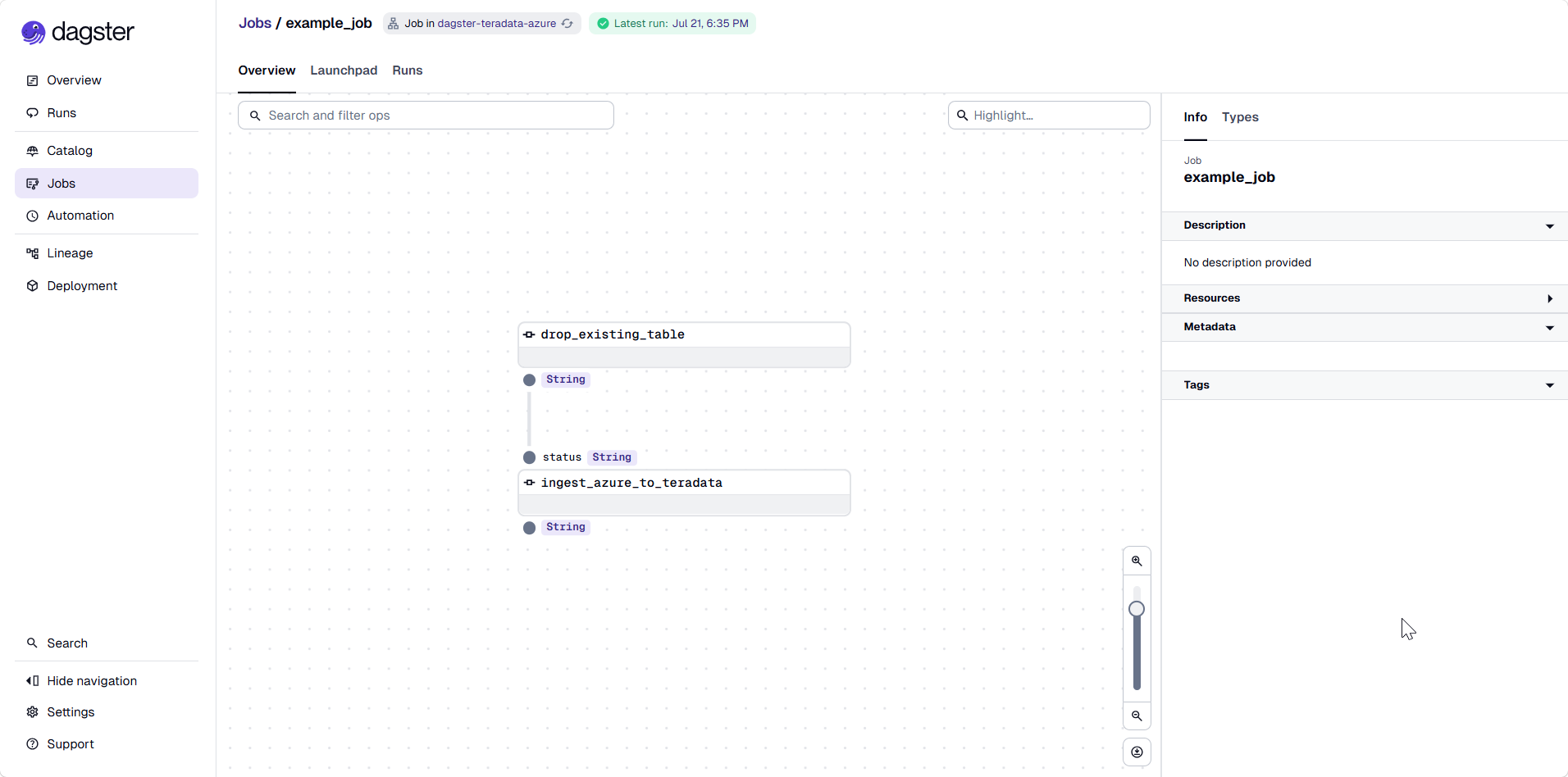
drop_existing_tabledrops thepeopletable.ingest_azure_to_teradatatransfers the public Azure Blob Storage dataset into thepeopletable.
Job Execution
The example_job runs the operations sequentially. It first drops the target table and then transfers the data from Azure Blob Storage to Teradata.
Use the Public Azure Blob Storage Dataset
This quickstart uses the following public CSV dataset:
Azure Blob Storage locations used by Teradata NOS must begin with /az/ or /AZ/ and follow this format:
The dataset used in this example is configured for public access and works with:
An Azure account, storage account key, SAS token, and Teradata AUTHORIZATION object are not required for this public example.
Set Environment Variables
Set the Teradata connection values in the same terminal from which you will run Dagster.
- Windows
- macOS/Linux
Run in PowerShell:
Prepare Teradata
The job begins by dropping the people table. Create the table before running the job for the first time:
The azure_blob_to_teradata method drops the placeholder table and creates a new people table from the columns in the public CSV dataset.
Create the table in the database specified by TERADATA_DATABASE. If the table already exists, skip this step.
Run the Pipeline
Start the Dagster Development Server
From the project root, run:
The uv run command runs dg dev in the isolated project environment defined by pyproject.toml.
When the logs show that the Dagster UI is available at http://127.0.0.1:3000, proceed to the next step.
dg dev uses an ephemeral Dagster instance by default. To preserve run history, set DAGSTER_HOME before starting the server.
- Windows
- macOS/Linux
Access the Dagster UI
Open http://127.0.0.1:3000 in a browser.
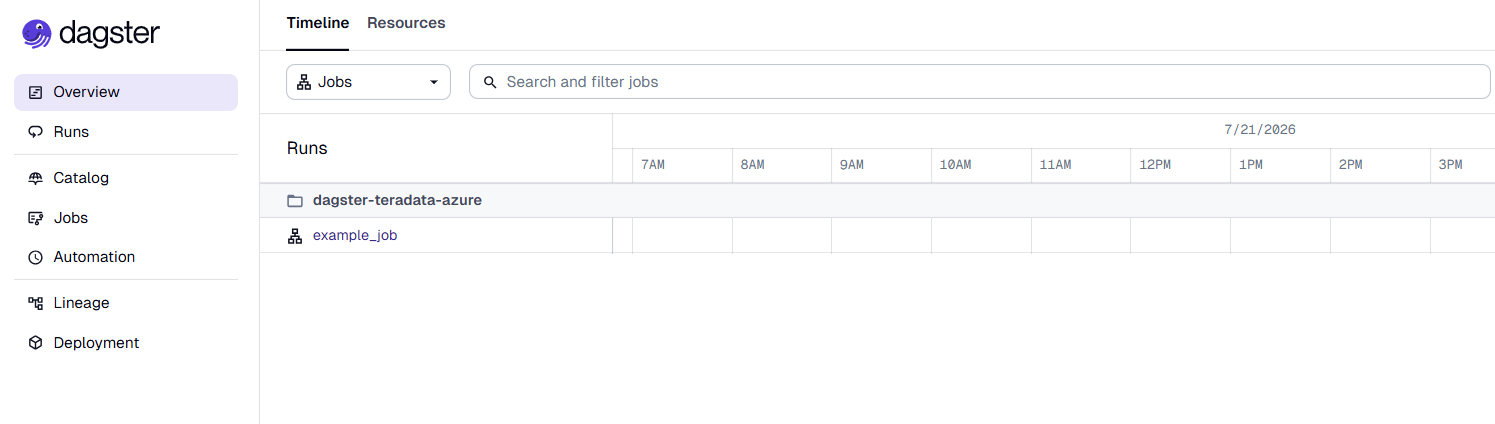
The Jobs page displays example_job and the dependency between its two operations.
Launch the Job
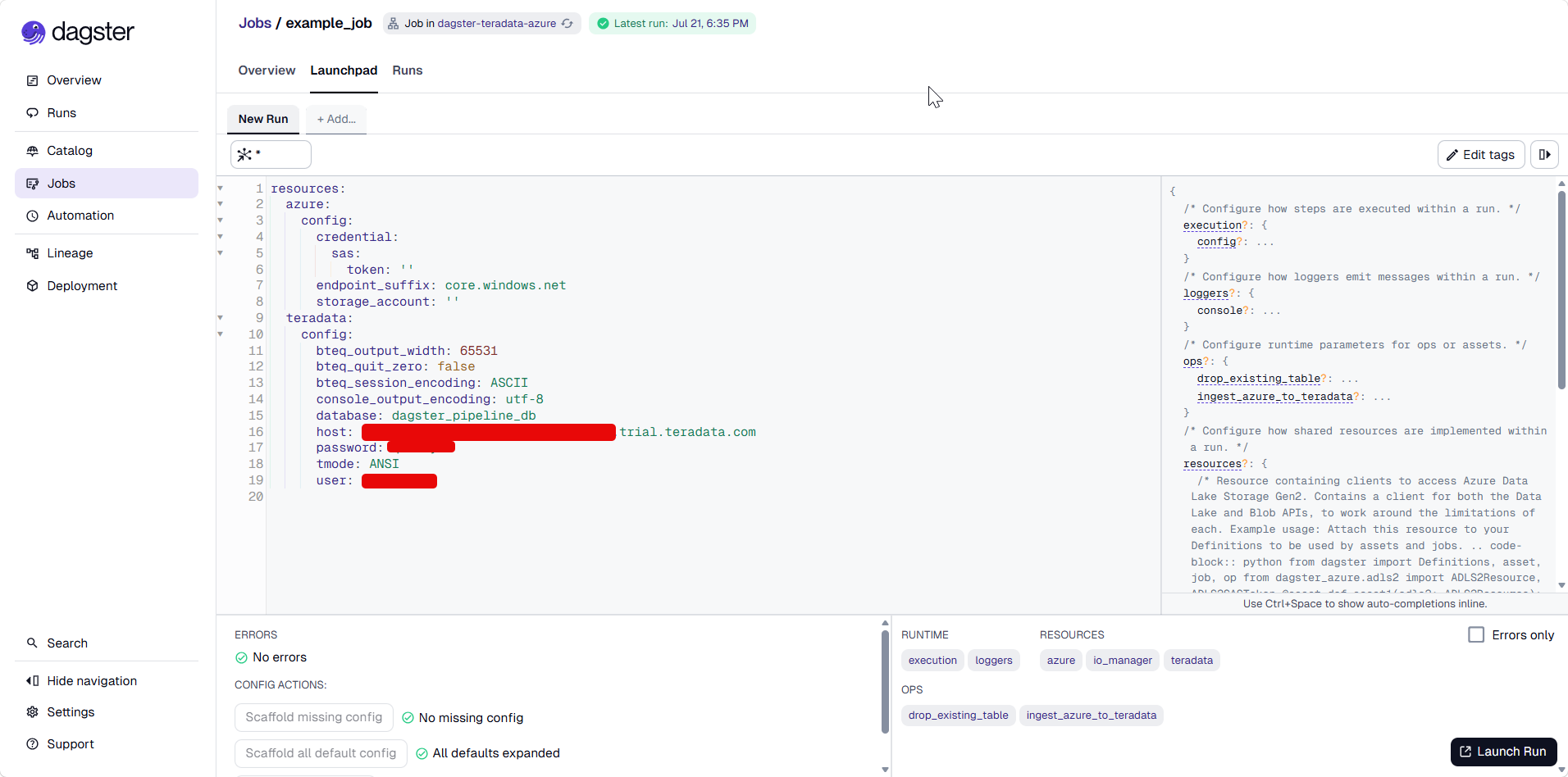
Open the Launchpad tab and select Launch Run.
The Teradata connection values are read from the environment variables set earlier, so no additional Launchpad configuration is required.
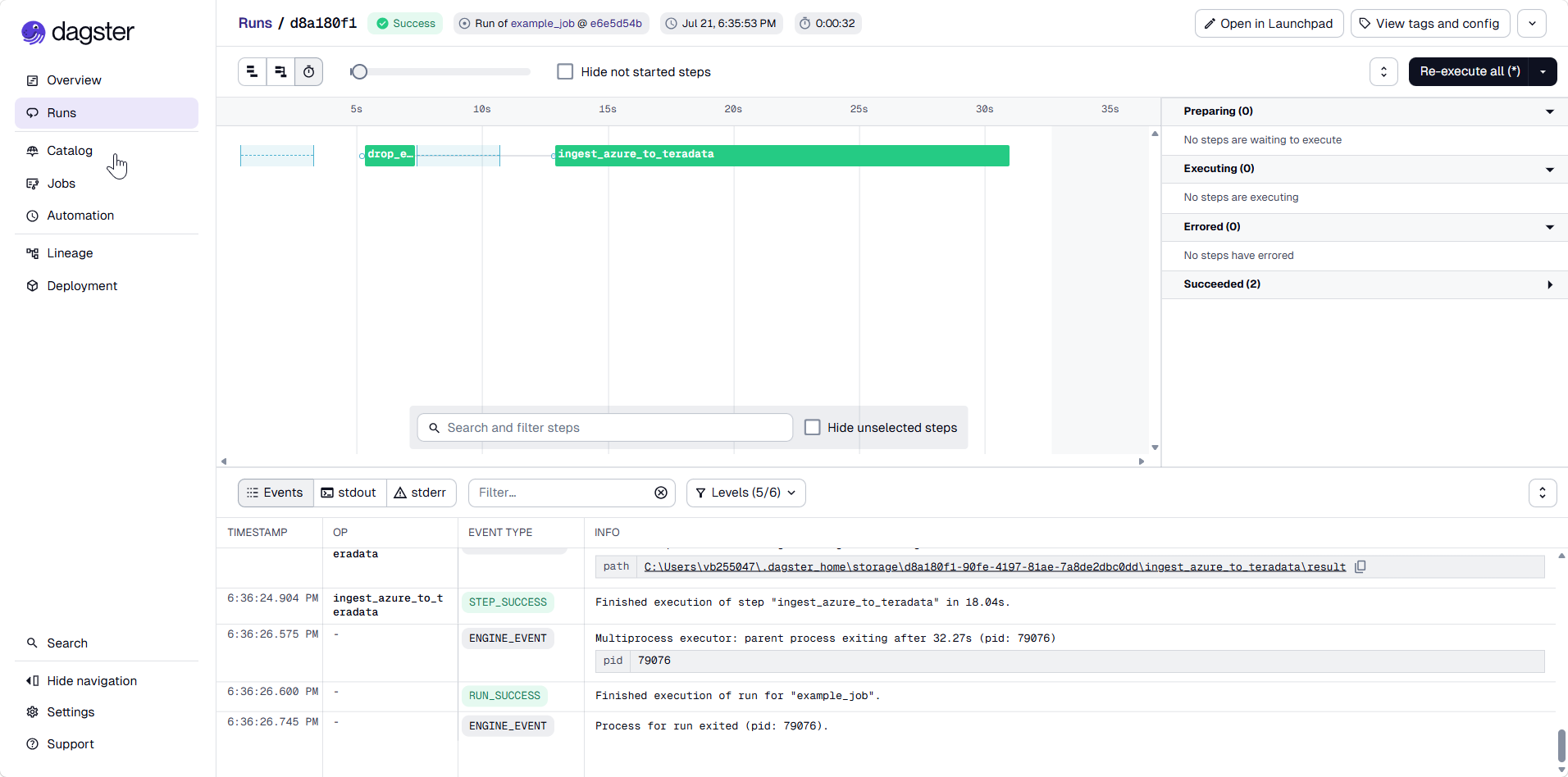
Use the Dagster UI to monitor the run, view logs, and inspect the status of each operation.
Verify the Data Transfer
After the job succeeds, run:
The query should return rows transferred from the public Azure Blob Storage dataset.
Transfer data from a private Blob Storage container to Teradata
To transfer data from a private Azure Blob Storage container to Teradata, complete the following prerequisites:
-
Create an Azure account.
-
Create an Azure storage account.
-
Create a blob container in the Azure storage account.
-
Upload CSV, JSON, or Parquet files to the blob container.
-
Create a Teradata authorization object using the Azure Blob Storage account name and access key.
NoteReplace
AZURE_BLOB_ACCOUNT_SECRET_KEYwith the access key for theazuretestquickstartAzure storage account.
Summary
In this quickstart, you created a Dagster project with uvx, configured the Azure and Teradata resources, and transferred data from a public Azure Blob Storage dataset to Teradata.