Use Fivetran to load data from external sources to Teradata
Overview
This quickstart demonstrates how to use Fivetran to transfer data from different sources like Google Sheets, PostgreSQL and Amazon S3 into Teradata.
Load data from Google Sheets to Teradata
Before You Begin
Make sure you:
- Have access to a Google account with edit access to the relevant Google Sheet.
- Have an available named range defined in the Google Sheet.
- Have credentials to connect to a Teradata instance.
Prerequisites
-
Active Fivetran Account
-
Access to a Teradata instance.
NoteIf you need a test instance of Teradata, you can provision one for free at https://www.teradata.com/try
When you log in to a newly created Fivetran account, the initial setup flow prompts you to select a source and destination. Teradata might not appear as a destination during this onboarding flow.
Complete or exit the initial setup to access the Fivetran Dashboard. Then, select Destinations from the left navigation menu, click Add destination, and search for Teradata.
Setup Google Sheets
Refer to the Google Sheets Setup Guide to configure sharing permissions and named ranges for data transfer using Fivetran.
Fivetran Setup: Sync from Google Sheets to Teradata
Configure Teradata as Destination
-
Log in to Fivetran Dashboard with valid credentials.
-
Navigate to
Destinationsfrom the left menu. -
Click on
Add destination.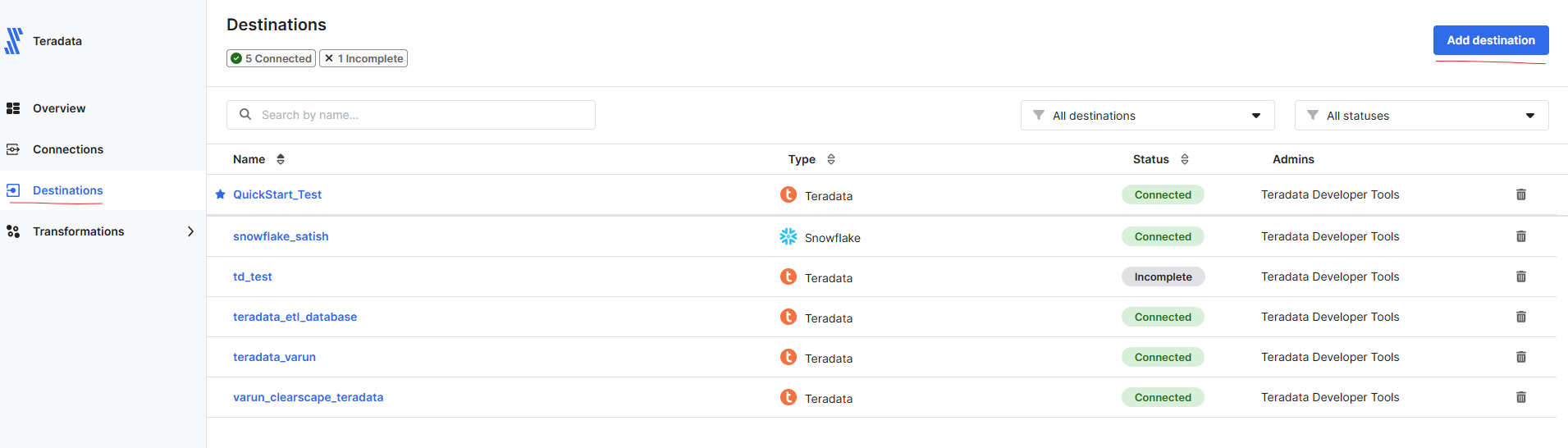
-
Search for and select
Teradata. -
Provide a name for the destination and click
Add. -
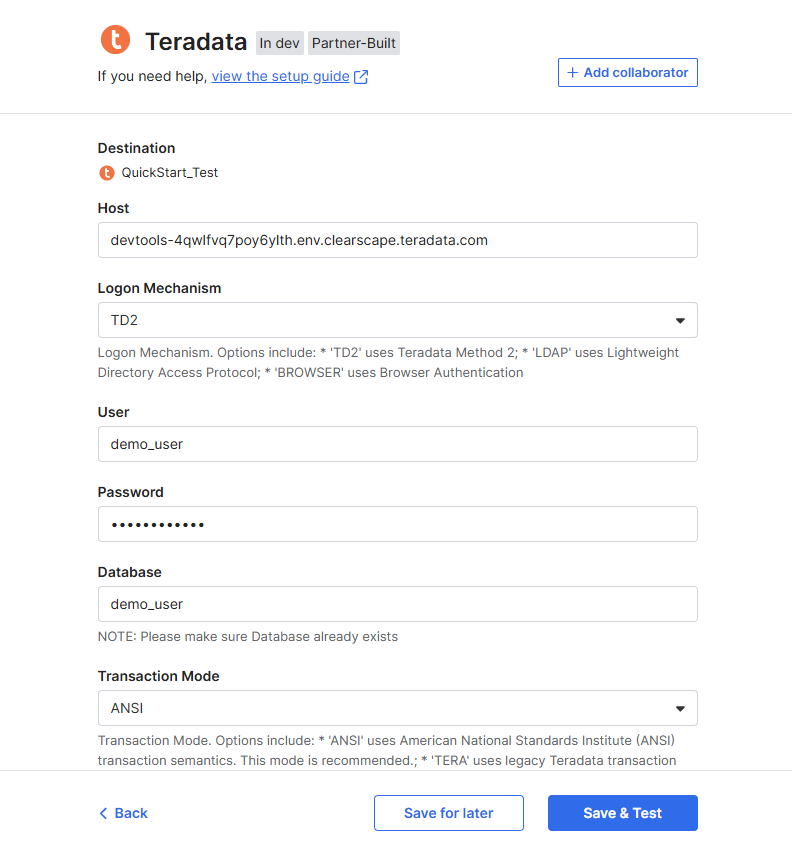
Enter the required connection details.
Host: Provide the Teradata instance hostnameLogon Mechanism: TD2Username: Teradata usernamePassword: Teradata passwordDatabase: Target database nameTransaction Mode: SelectANSIorTERA
Optional Connection Parameters
You can provide additional JDBC or destination-specific parameters to customize the connection. These fields are optional and may not be required for all environments:
SSL Mode:Controls the SSL encryption level. Common values:DISABLE: No SSLALLOW: SSL if availableREQUIRE: Enforce SSLVERIFY_CA: Enforce SSL and validate certificate authorityVERIFY_FULL: Enforce SSL, validate certificate authority, and perform hostname verification
JDBC Parameters:For example:CHARSET=UTF8: Sets the character encoding.ENCRYPTDATA=TRUE: Enables data encryption in transit.- Refer to Teradata JDBC Driver Documentation for a full list of supported options.
-
Click
Save and Test. Ensure the connection test is successful before proceeding.
Setup Connection with Source as Google Sheets
- Go to
Connectionsin the Fivetran Dashboard. - Click
Add connection. - Search and select
Google Sheets. - Click
Setup. - Choose the
Teradata destinationconfigured in the previous step. - Fill in the Google Sheets source details.
Destination schemaDestination tableAuthentication Method- Refer Google Sheets Setup Guide to choose appropriate Authentication Method.Sheet URLSelect Named Range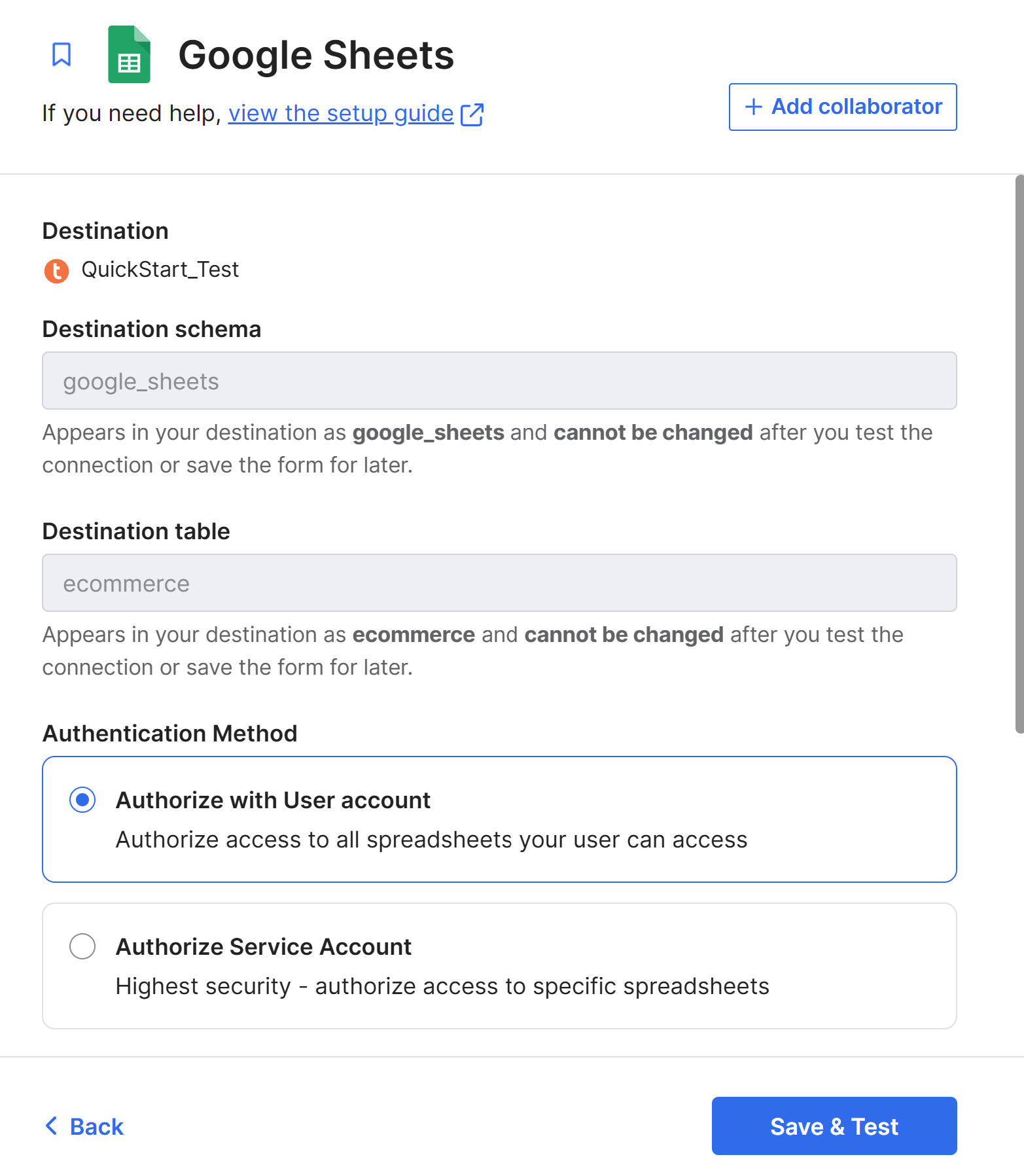
- Click
Save & Testand confirm the connection success. - Click
Continue. On theBefore you syncpage, choose the appropriate next step, then clickStart initial sync. Wait until the sync status changes toInitial sync complete.
Verify Data in Teradata
Once the sync is complete, connect to your Teradata instance using a client like Teradata Studio:
- Open Teradata Studio and create a new connection.
- Enter the Teradata hostname, username, and password used during Fivetran setup.
- Test the connection and click Finish.
- Navigate to the database
- Run a
SELECTquery to verify the data from Google Sheets is present.
Load data from PostgreSQL to Teradata
Prerequisites
-
Access to a PostgreSQL instance.
-
Access to a Teradata instance.
NoteIf you need a test instance of Teradata, you can provision one for free at https://www.teradata.com/try
Setup PostgreSQL
Refer to the Postgres Setup Guide to configure PostgreSQL on Fivetran.
Fivetran Setup: Sync from Postgres to Teradata
Configure Teradata as Destination
-
Log in to the Fivetran Dashboard with valid credentials.
-
Navigate to
Destinationsin the left menu. -
Click on
Add destination. -
Search for and select
Teradata. -
Provide a name for the destination and click
Add. -
Enter the required connection details.
Host: Provide the Teradata instance hostnameLogon Mechanism: TD2Username: Teradata usernamePassword: Teradata passwordDatabase: Target database nameTransaction Mode: SelectANSIorTERA
Optional Connection Parameters
You can provide additional JDBC or destination-specific parameters to customize the connection. These fields are optional and may not be required for all environments:
SSL Mode:Controls the SSL encryption level. Common values:DISABLE: No SSLALLOW: SSL if availableREQUIRE: Enforce SSLVERIFY_CA: Enforce SSL and validate certificate authorityVERIFY_FULL: Enforce SSL, validate certificate authority, and perform hostname verification
JDBC Parameters:For example:CHARSET=UTF8: Sets the character encoding.ENCRYPTDATA=TRUE: Enables data encryption in transit.- Refer to Teradata JDBC Driver Documentation for a full list of supported options.
-
Click
Save and Test. Ensure the connection test is successful before proceeding.
Setup Connection with Source as Postgres
- Go to
Connectionsin the Fivetran Dashboard. - Click
Add connection. - Search and select
Postgres. - Click
Setup. - Choose the
Teradata destinationconfigured in the previous step. - Fill in the PostgreSQL source details.
- Enter the required connection details.
Host: Provide PostgreSQL instance hostnamePort: Provide Port NumberUser: PostgreSQL instance usernamePassword: PostgreSQL instance passwordDatabase: Target database nameConnection method: Choose a connection method based on your PostgreSQL setup. Refer to the PostgreSQL Setup instructions for more information about the available connection methods. This guide uses theConnect directlyconnection method.Update Method: Choose your incremental sync method. This guide uses theLogical Replicationsync method.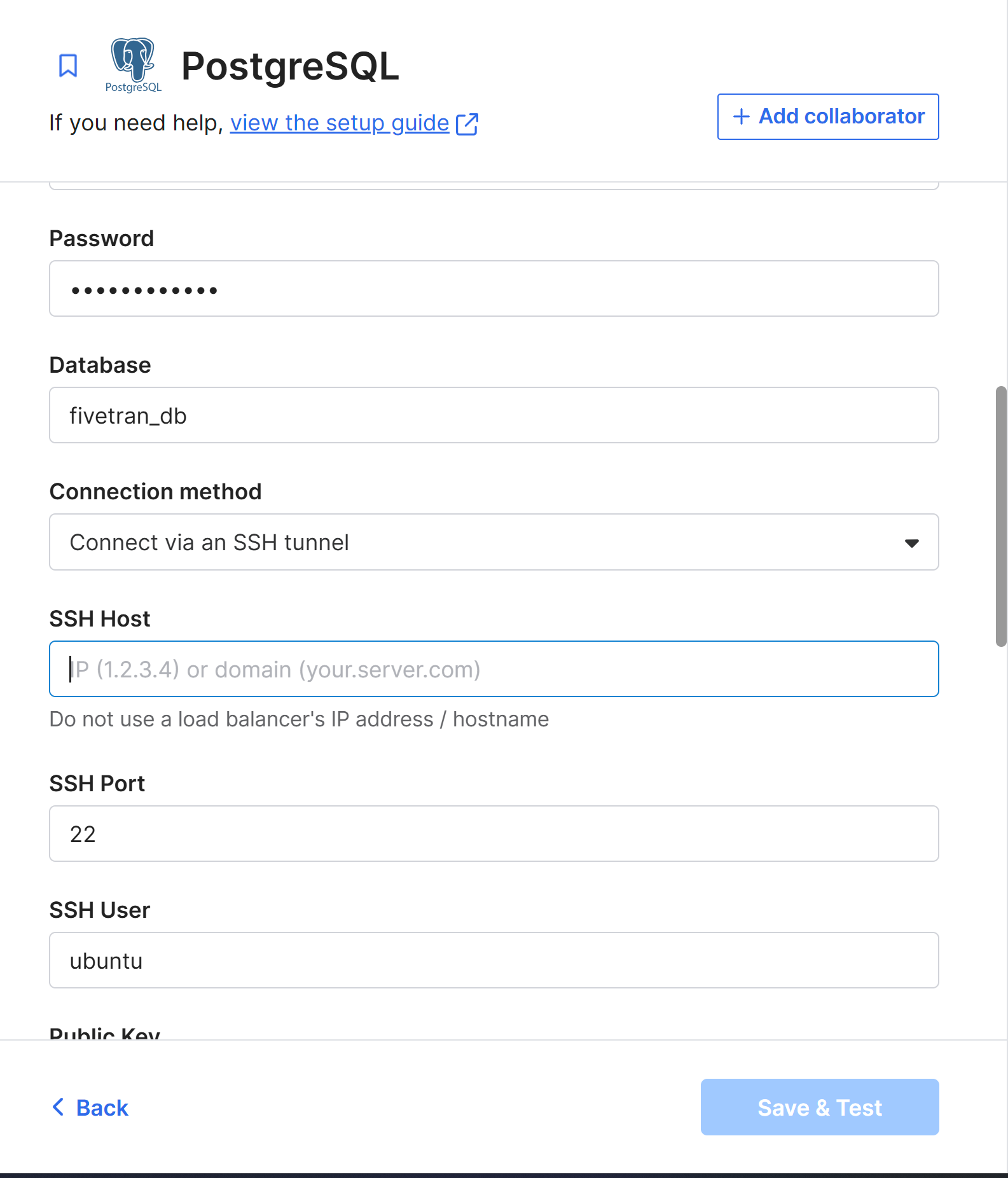
- Click
Save & Testand confirm the connection success. - Click on
Continueto begin the initial data load. Wait until the sync status changes toInitial sync complete.
Verify Data in Teradata
Once the sync is complete, connect to your Teradata instance using a client like Teradata Studio:
- Open Teradata Studio and create a new connection.
- Enter the Teradata hostname, username, and password used during Fivetran setup.
- Test the connection and click Finish.
- Navigate to the database
- Run a
SELECTquery to verify the data from PostgreSQL is present.
Load data from Amazon S3 to Teradata
Prerequisites
-
Access to Amazon S3.
-
Access to a Teradata instance.
NoteIf you need a test instance of Teradata, you can provision one for free at https://www.teradata.com/try
Setup Amazon S3
Refer to the Amazon S3 Setup Guide to configure Amazon S3 on Fivetran.
Fivetran Setup: Sync from Amazon S3 to Teradata
Configure Teradata as Destination
-
Log in to Fivetran Dashboard with valid credentials.
-
Navigate to
Destinationsfrom the left menu. -
Click on
Add destination. -
Search for and select
Teradata. -
Provide a name for the destination and click
Add. -
Enter the required connection details.
Host: Provide the Teradata instance hostnameLogon Mechanism: TD2Username: Teradata usernamePassword: Teradata passwordDatabase: Target database nameTransaction Mode: SelectANSIorTERA
Optional Connection Parameters
You can provide additional JDBC or destination-specific parameters to customize the connection. These fields are optional and may not be required for all environments:
SSL Mode:Controls the SSL encryption level. Common values:DISABLE: No SSLALLOW: SSL if availableREQUIRE: Enforce SSLVERIFY_CA: Enforce SSL and validate certificate authorityVERIFY_FULL: Enforce SSL, validate certificate authority, and perform hostname verification
JDBC Parameters:For example:CHARSET=UTF8: Sets the character encoding.ENCRYPTDATA=TRUE: Enables data encryption in transit.- Refer to the Teradata JDBC Driver Documentation for a full list of supported options.
-
Click
Save and Test. Ensure the connection test is successful before proceeding.
Setup Connection with Source as Amazon S3
- Go to
Connectionsin the Fivetran Dashboard. - Click
Add connection. - Search and select
Amazon S3. - Click
Setup. - Choose the
Teradata destinationconfigured in the previous step. - Fill in the Amazon S3 source details.
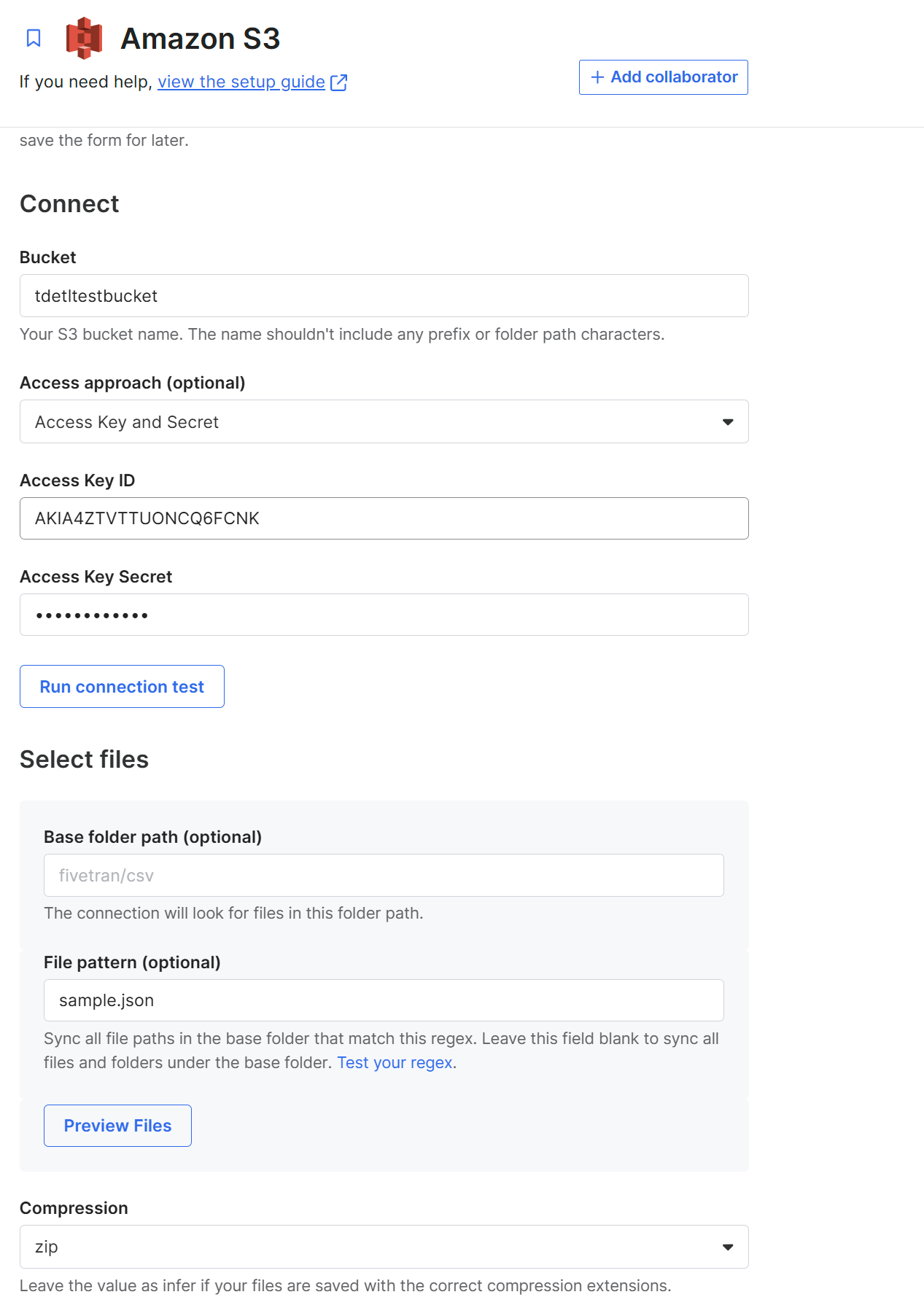
- Enter the required connection details.
Destination schemaDestination tableConnectBucket: S3 Bucket NameAccess approach: Choose Access Key and SecretAccess Key ID: Access Key ID of your IAM user.Access Key Secret: Secret Access Key of your IAM user.
Compression: Select ZIPFormatFile Type: CSV
- Click
Save & Testand confirm the connection success. - Click on
Continueto begin the initial data load. Wait until the sync status changes toInitial sync complete.
Verify Data in Teradata
Once the sync is complete, connect to your Teradata instance using a client like Teradata Studio:
- Open Teradata Studio and create a new connection.
- Enter the Teradata hostname, username, and password used during Fivetran setup.
- Test the connection and click Finish.
- Navigate to the database
- Run a
SELECTquery to verify the data from Amazon S3 is present.
Try More Use Cases
Fivetran supports many source and destination combinations. After completing this example, consider:
- Replicating data from Oracle, Salesforce, or another Fivetran-supported source to Teradata.
Summary
In this guide, you:
- Set up Google Sheets, PostgreSQL, and Amazon S3 as data sources.
- Configured Fivetran to sync data from these sources to Teradata.
- Verified the synchronized data using Teradata Studio.