Use Airbyte to load data from external sources to Teradata
Overview
This tutorial shows how to use Airbyte to move data from external sources to Teradata. In this example, you replicate data from Google Sheets to Teradata. You can follow the configuration steps using either Airbyte Open Source or Airbyte Cloud.
- Source: Google Sheets
- Destination: Teradata
Prerequisites
- Access to a Teradata instance. This will be defined as the destination of the Airbyte connection. You will need a
Host,Username, andPasswordfor Airbyte's configuration.
If you need a test instance of Teradata, you can provision one for free at https://www.teradata.com/try
-
Google Cloud Platform API enabled for your personal or organizational account. You'll need to authenticate your Google account via OAuth or via Service Account Key Authenticator. In this example, we use Service Account Key Authenticator.
-
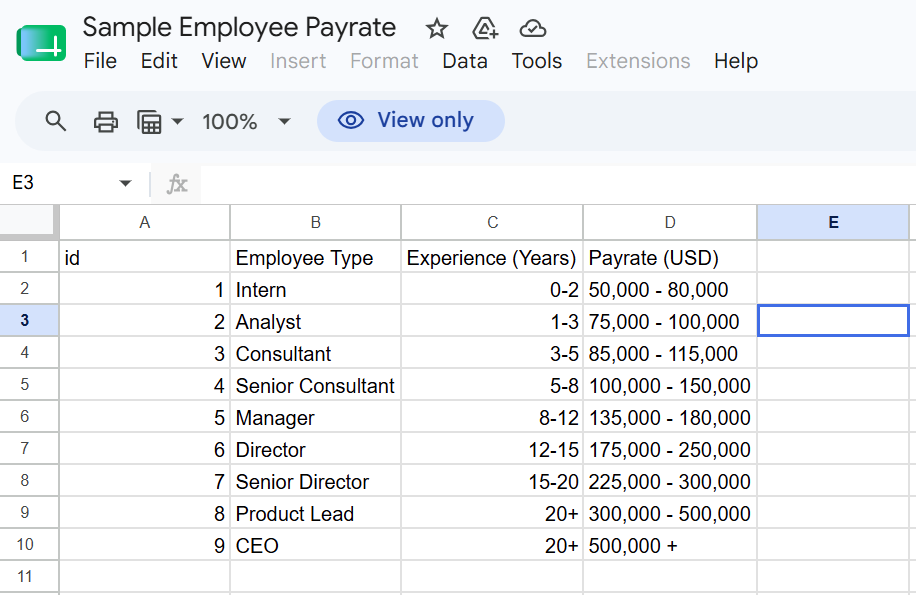
Data from the source system. In this case, we use a sample spreadsheet from Google Sheets. The sample data is a breakdown of pay rate by employee type.
Airbyte Cloud
- Create an account on Airbyte Cloud and skip to the instructions under the Airbyte Configuration section.
Airbyte Open Source
To deploy a local instance of Airbyte Core, Airbyte's open source product, you need to install:
-
abctl, Airbyte's command line tool for deploying and managing Airbyte. It can be installed for Mac, Windows, and Linux.
There are several ways to run Airbyte on your machine. You can run it locally, over HTTP, and even in low resource mode. In this example, we run Airbyte Open Source locally using Docker Desktop.
- While keeping Docker Desktop running, open a terminal and run the following command to install Airbyte.
Installation may take up to 30 minutes depending on your internet connection. When it completes, the Airbyte instance opens up in your web browser at http://localhost:8000.
- In the opened http://localhost:8000 page, enter your Email and Organization name, then click
Get started.
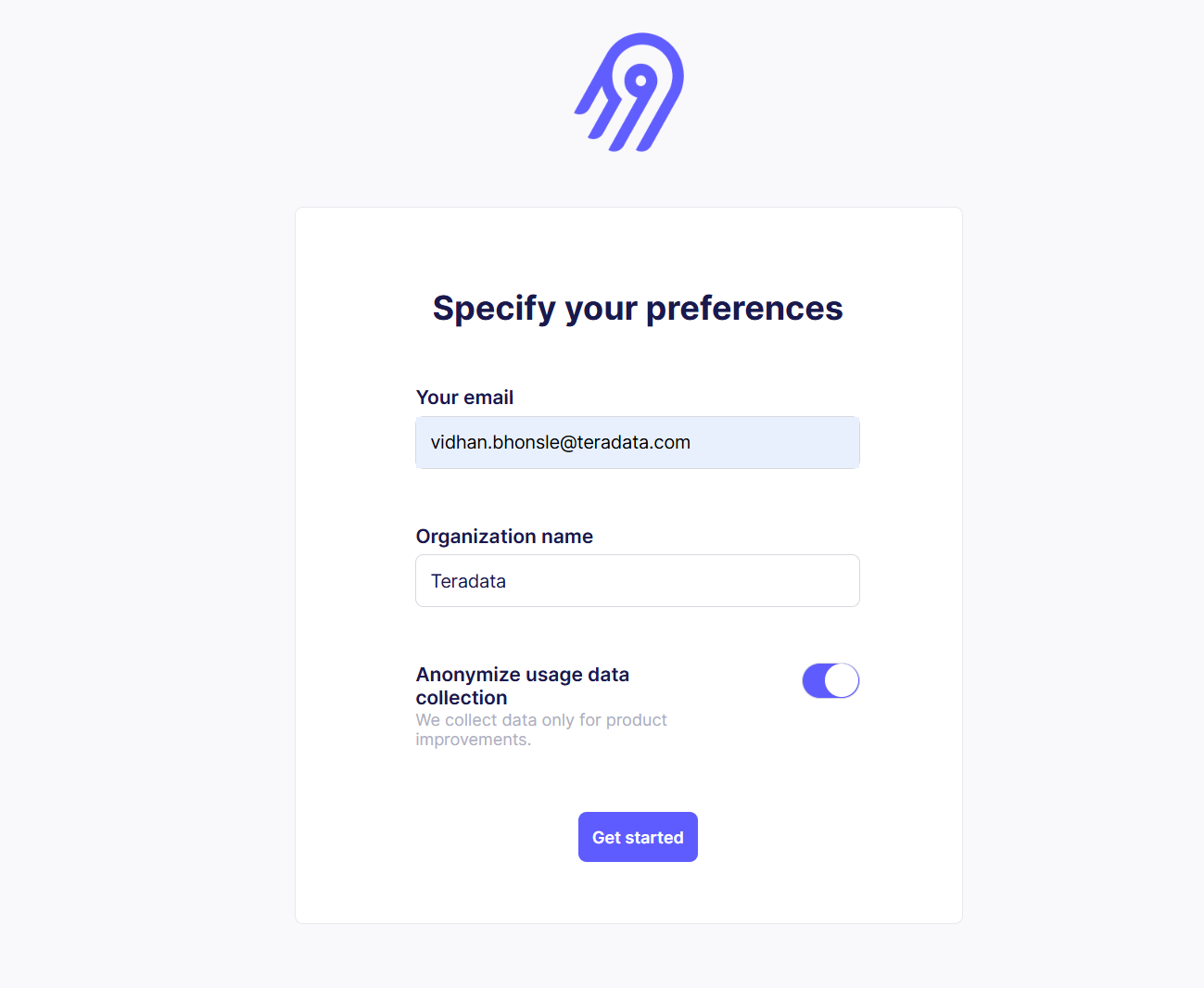
- To access your Airbyte instance, you need a password.
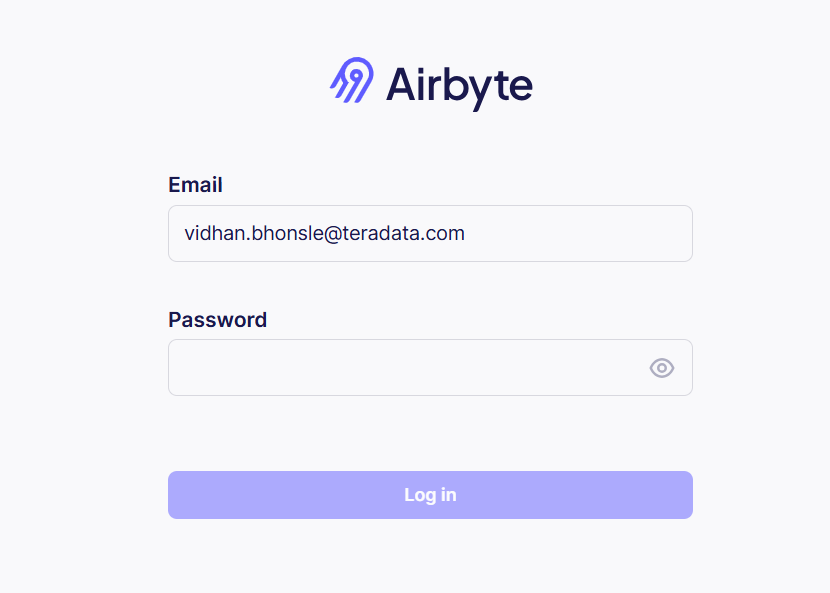
- To get the credentials, enter the following command in the terminal.
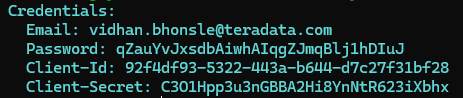
Enter the password you got from the terminal, as shown in the previous image, in the browser to log into Airbyte. Once Airbyte Open Source is launched for the first time, you will see a connections dashboard.
Airbyte Configuration
Set up the Source Connection
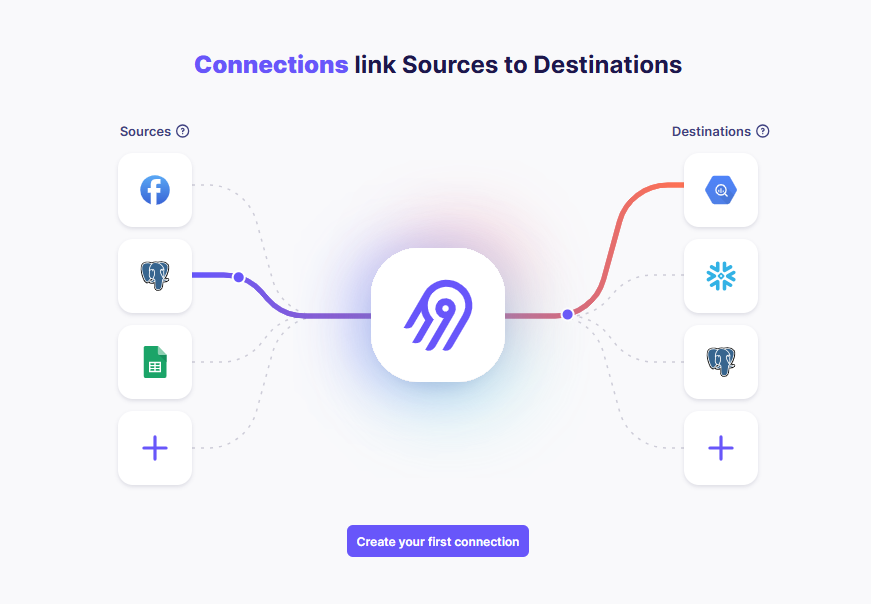
- Click
Create your first connectionto initiate a new connection workflow.
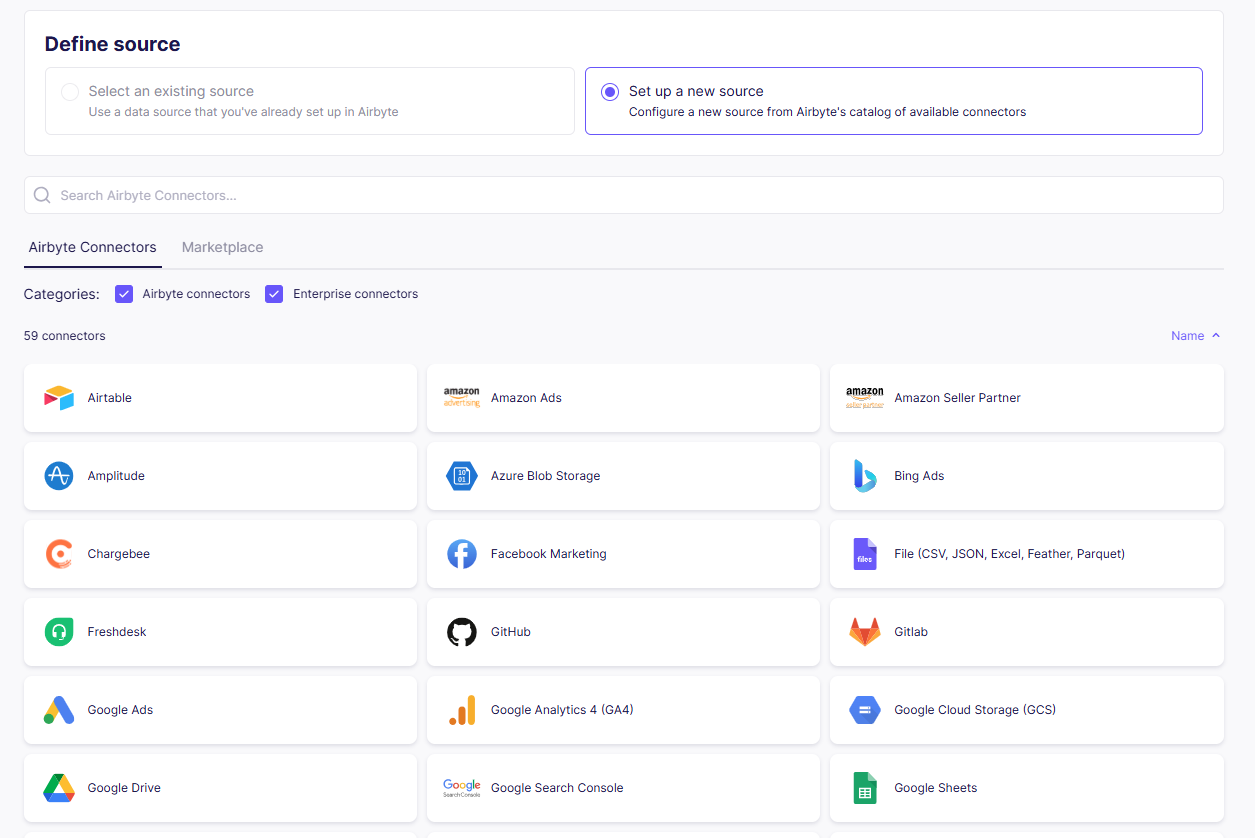
- Airbyte asks you to select a source. You can select an existing source or set up a new source. In this example, select
Google Sheets.
-
Add the link to the source spreadsheet as
Spreadsheet Link. -
For authentication use
Service Account Key Authentication, which uses a service account key in JSON format. Toggle from the defaultOAuthoption toService Account Key Authentication, then enter your Google Cloud service account key in JSON format. -
Make sure the service account has the
Viewerrole in your Google Cloud project and that theGoogle Sheets APIis enabled for the project. If your spreadsheet is viewable by anyone with its link, no further action is needed. If not, open the Google Sheet, clickShare, and give the service account email from the JSON key, listed asclient_email, at leastVieweraccess to the spreadsheet.
For more details, refer to setting Google Sheets as Source Connector in Airbyte Open Source
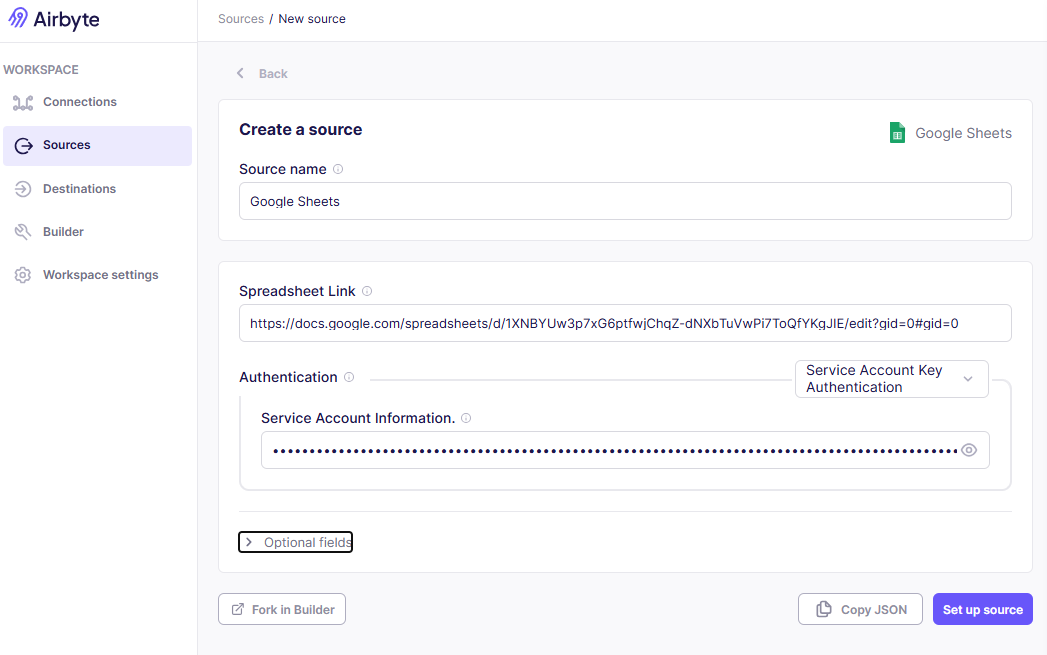
- Click
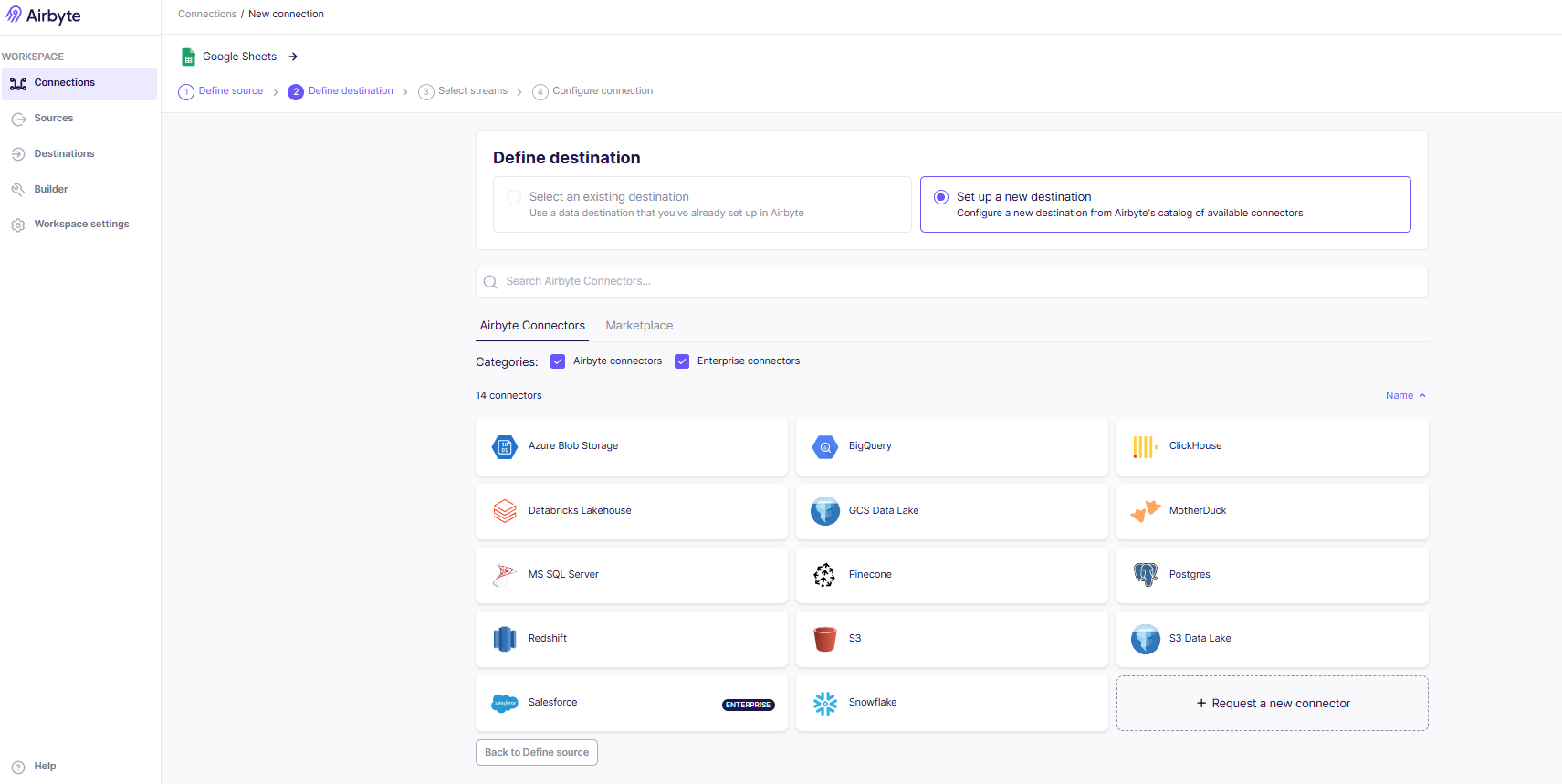
Set up source. If the configuration is correct, you will see theDefine destinationsection.
Set up the Destination Connection
-
Assuming you want to create a fresh new connection with
Teradata, search forTeradataas the destination type under the "Set up a new destination" section. You can find it undermarketplace. -
Add the
Host,User, andPassword. These are the same as theHost,Username, andPasswordfor your Teradata instance (check prerequisites). -
Provide a default schema name under the
Optional fieldssection. In this example, we usegsheet_airbyte_td.
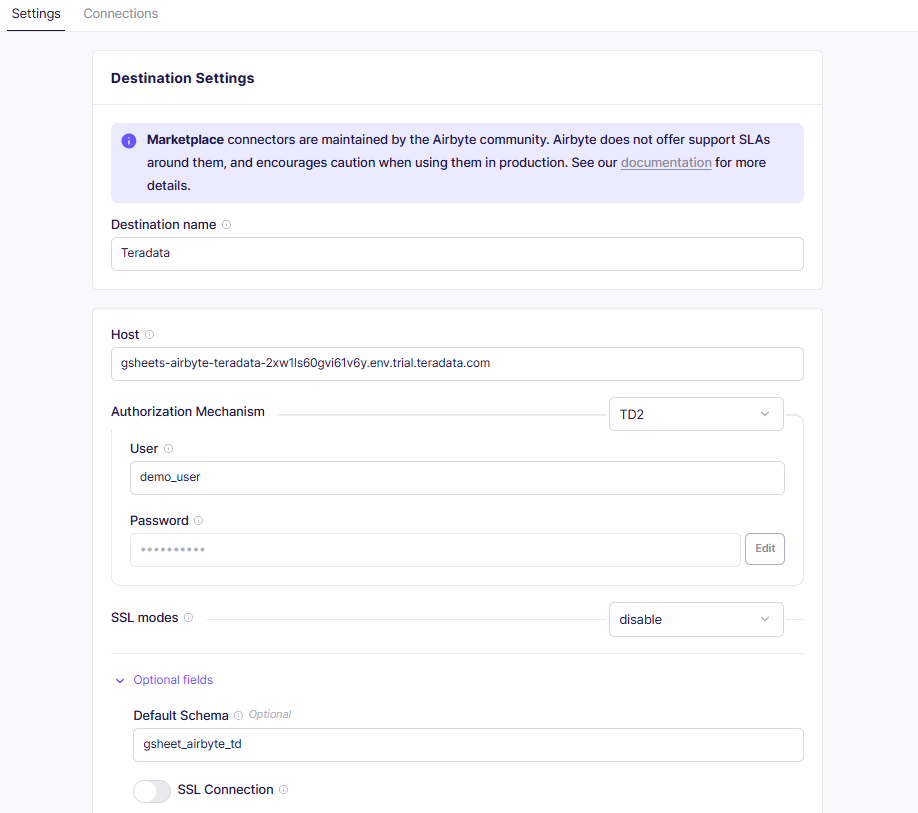
- Click
Set up destination. If the configuration is correct, you will see theSelect streamssection.

If you get a configuration check failed error, make sure your Teradata instance is running and accessible from Airbyte.
Select sync mode and schema
- In the
Select streamssection, you can select how you want your data to be delivered to the Teradata destination. - Under
Select Sync Mode, you can choose betweenReplicate SourceandAppend Historical Changes. In this example, we selectReplicate Source, as it keeps an up-to-date copy of the Google Sheets data in Teradata. - Under
Schema, review the columns detected from the Google Sheet.
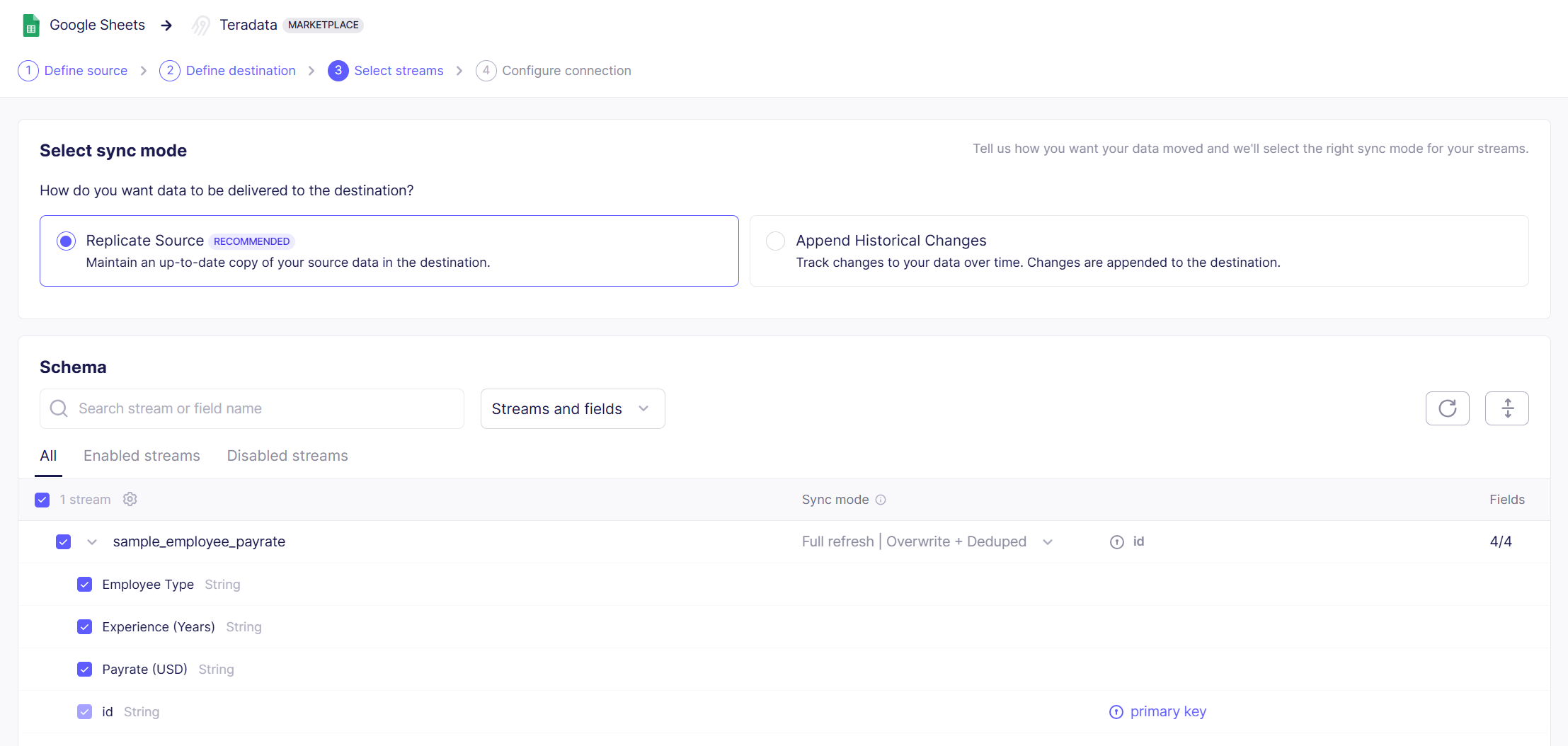
- In this example, Airbyte detects the following columns:
idEmployee TypeExperience (Years)Payrate (USD)
- Keep all four columns selected. Select
idas the primary key, as it uniquely identifies each row in the Google Sheet. - After selecting the sync mode and confirming the schema, click
Next.
Configure connection
- In the
Configure connectionsection, provide a name for your connection. You can keep the default name or update it based on your use case. - Select the
Schedule type. In this example, we keep it asScheduled. - Select the
Replication frequency. In this example, we keep it asEvery 24 hours. - Under
Destination Namespace, selectDestination-defined. In this example, the destination is Teradata, so Airbyte uses the default schemagsheet_airbyte_tdthat we defined while configuring the Teradata destination.
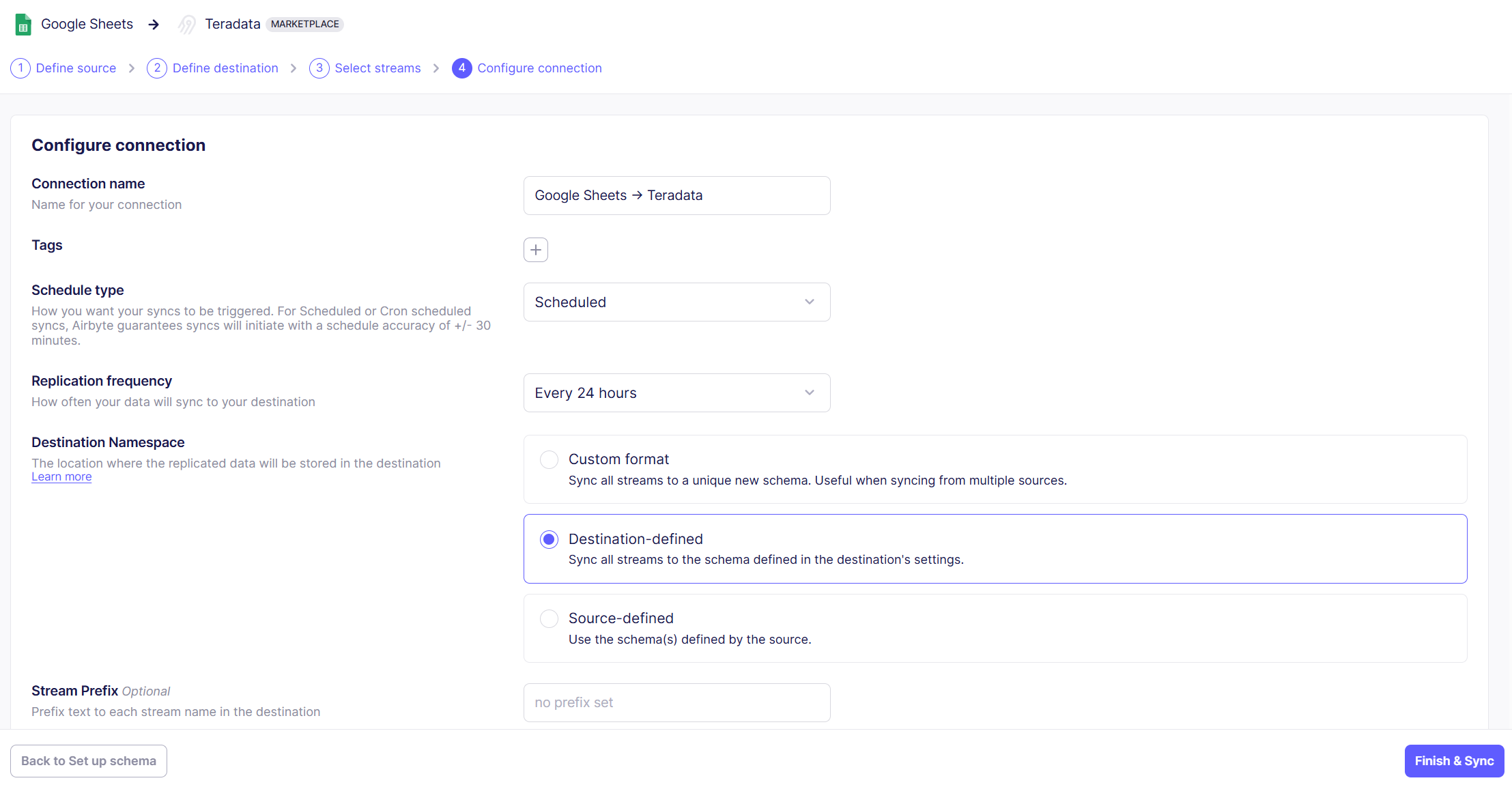
We use the term "schema", as it is the term used by Airbyte. In a Teradata context, the equivalent term is "database".
-
The stream name is based on the name of the spreadsheet in the source. In this example, the stream name is
sample_employee_payrate. Since we are using the single spreadsheet connector, it supports one stream for the selected spreadsheet. -
Review the configuration and click
Finish & Syncto create the connection and start syncing data from Google Sheets to Teradata.
Data Sync Validation in Airbyte
After you click Finish & Sync, Airbyte creates the connection and starts the first sync. Airbyte tracks synchronization attempts in the Status tab.
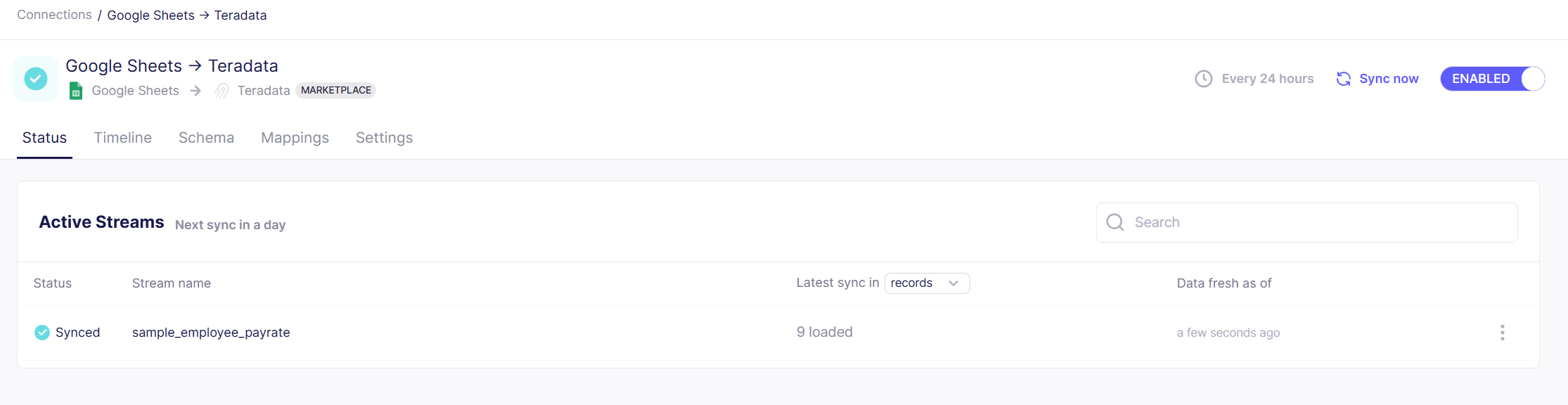
In this example, the sample_employee_payrate stream is synced successfully, and Airbyte shows that 9 records were loaded to the Teradata destination.
You can also click Sync now to run the sync manually.
Validate the data in Teradata Trial
Next, you can go to the Teradata Trial and run a Jupyter notebook to verify if the database gsheet_airbyte_td, stream table, and data are available in Teradata.
Notebooks in Teradata Trial are configured to run Teradata SQL queries.
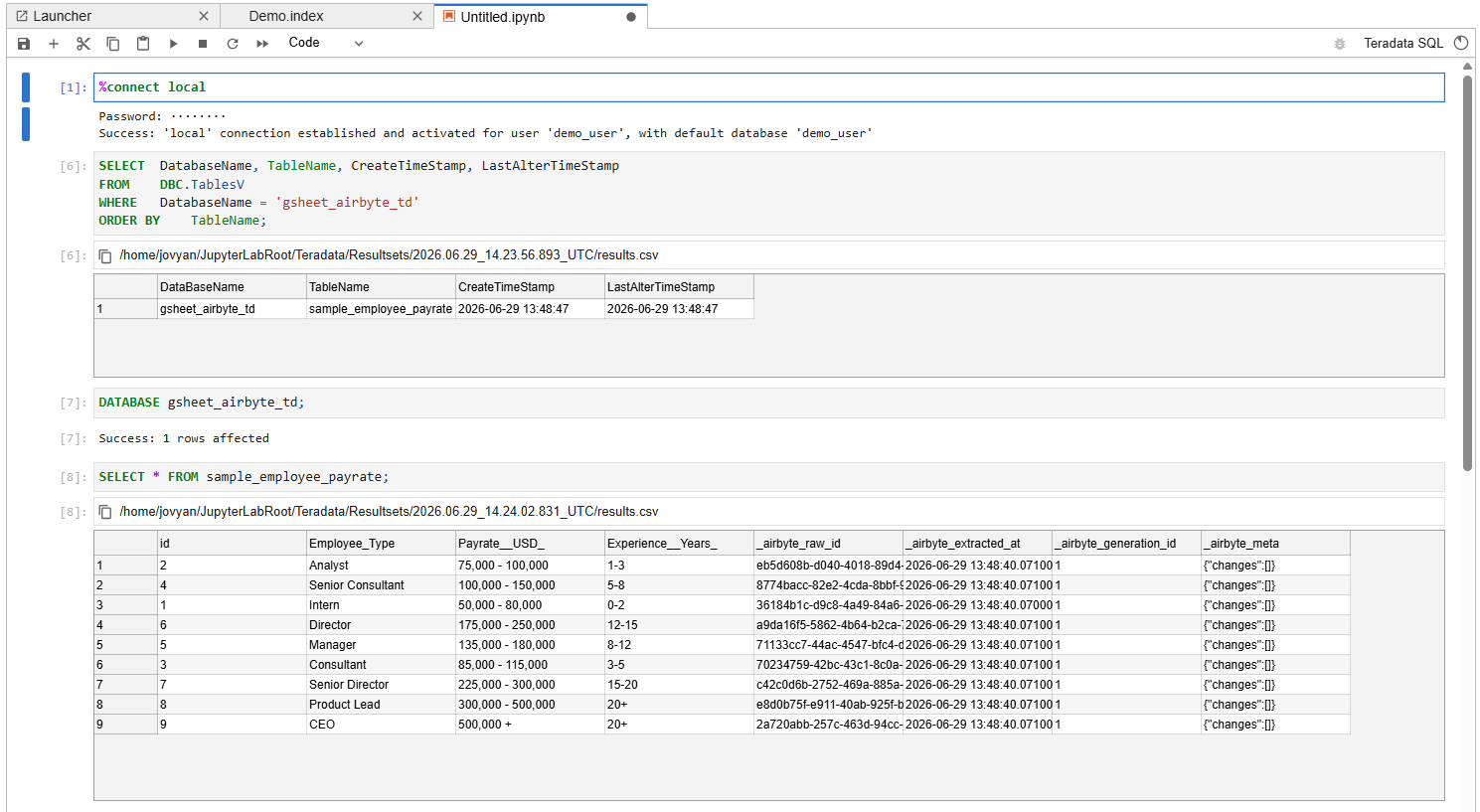
Connect to the local Teradata environment.
Run the following query to verify that the database and table were created in Teradata.
Switch to the gsheet_airbyte_td database.
Query the synced table.
In this example, the table sample_employee_payrate is created in the gsheet_airbyte_td database. The table contains the data synced from the Google Sheet along with Airbyte metadata columns.
Airbyte may convert source column names into SQL-friendly column names in the destination. In this example, the Google Sheet columns are synced to Teradata as id, Employee__Type, Experience__Years_, and Payrate__USD_. Airbyte also adds metadata columns such as _airbyte_raw_id, _airbyte_extracted_at, _airbyte_generation_id, and _airbyte_meta.
You should see 9 rows in the Teradata table, the same as the source Google Sheet.
Optional: Close and delete the connection
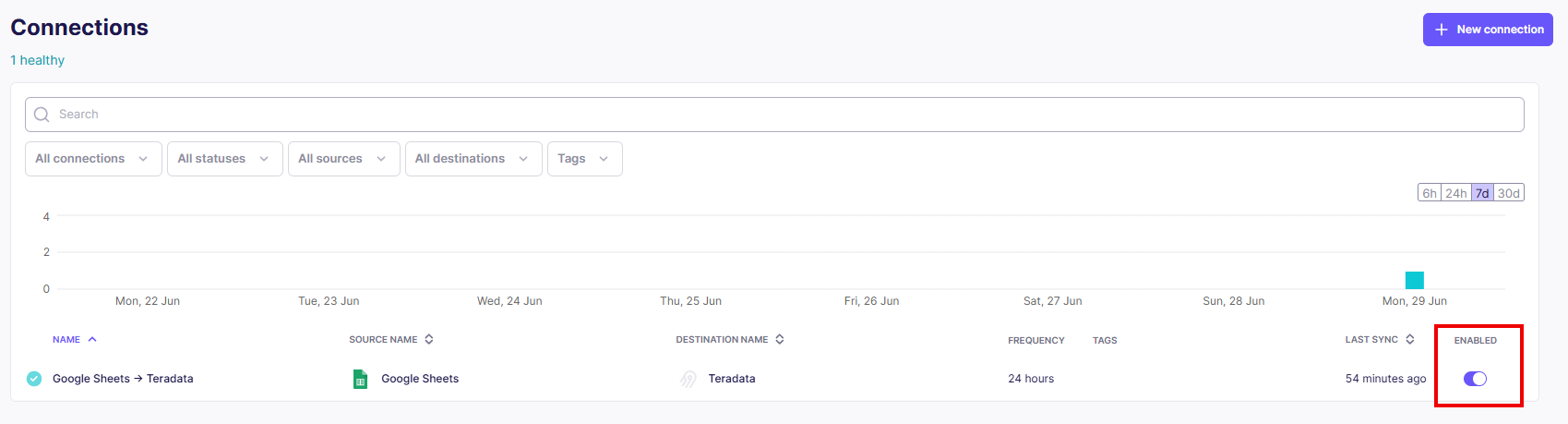
If you do not want Airbyte to continue syncing data from Google Sheets to Teradata, go to the Connections page and disable the connection using the Enabled toggle. This stops future syncs without deleting the connection configuration.
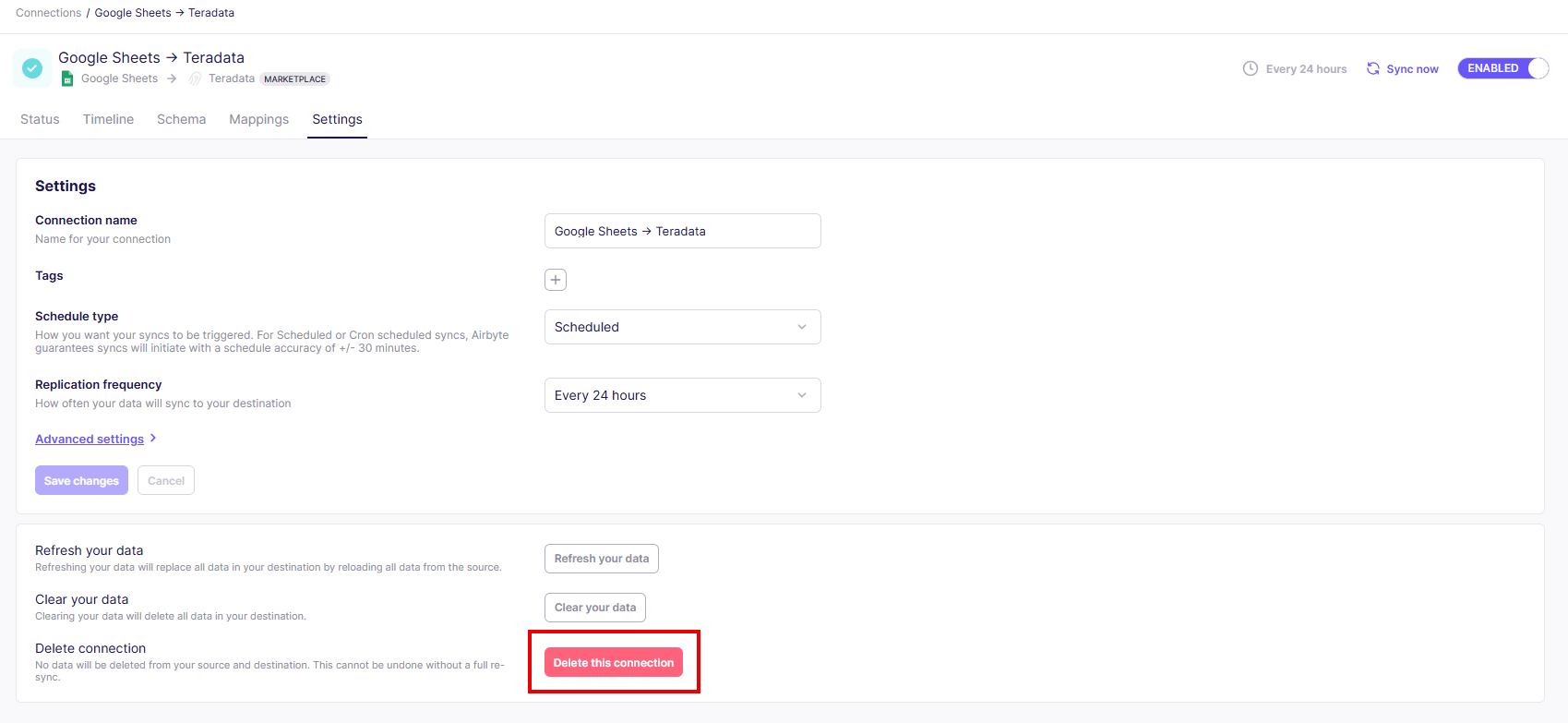
You can also delete the connection if you no longer need it. To delete the connection, open the connection, go to the Settings tab, scroll to Delete Connection, and click Delete this connection.
Summary
This tutorial demonstrated how to extract data from a source system like Google Sheets and use Airbyte to load the data into a Teradata instance. We saw the end-to-end data flow, including how to run Airbyte Open Source locally, configure Google Sheets as the source, configure Teradata as the destination, select the sync mode and schema, and start the data sync. We also validated the synced data in Teradata Trial and reviewed how to disable or delete the Airbyte connection when it is no longer needed.
Further reading
Teradata Destination | Airbyte Documentation