Ingest and Catalog Data from Teradata to Amazon S3 with AWS Glue Scripts
Overview
This quickstart details the process of ingesting and cataloging data from Teradata to Amazon S3 with AWS Glue.
For ingesting data to Amazon S3 when cataloging is not a requirement consider Teradata Write NOS capabilities.
Prerequisites
- Access to an Amazon AWS account
- Access to a Teradata instance (Teradata Cloud, Teradata Factory, or Teradata Trial)
Note
If you need a test instance of Teradata, you can provision one for free at https://www.teradata.com/try
- A database client to send queries for loading the test data, we recommend Teradata SQL Extension for Visual Studio Code.
Loading of test data
- In your favorite database client run the following queries
Amazon AWS setup
In this section, we will cover in detail each of the steps below:
- Create an Amazon S3 bucket to ingest data
- Create an AWS Glue Catalog Database for storing metadata
- Store Teradata credentials in AWS Secrets Manager
- Create an AWS Glue Service Role to assign to ETL jobs
- Create a connection to a Teradata Instance in AWS Glue
- Create an AWS Glue Job
- Draft a script for automated ingestion and cataloging of Teradata data into Amazon S3
Create an Amazon S3 Bucket to Ingest Data
- In Amazon S3, select
Create bucket.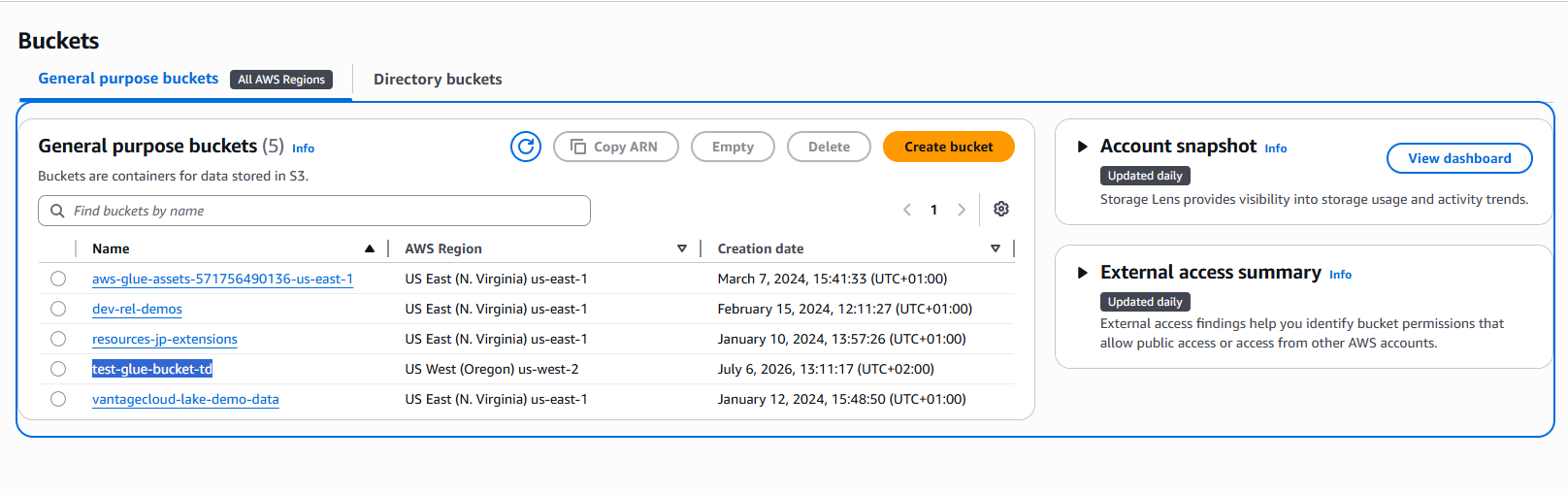
- Assign a name to your bucket and take note of it.
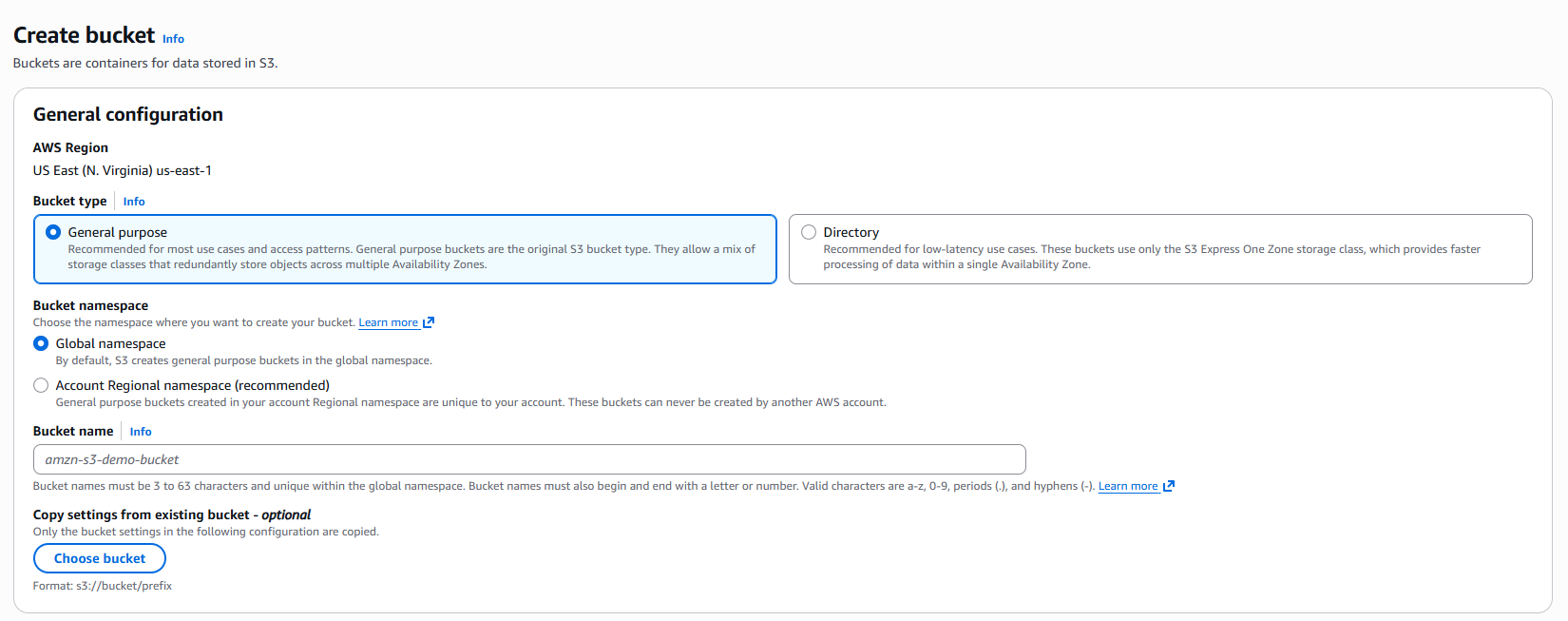
- Leave all settings at their default values.
- Click on
Create bucket.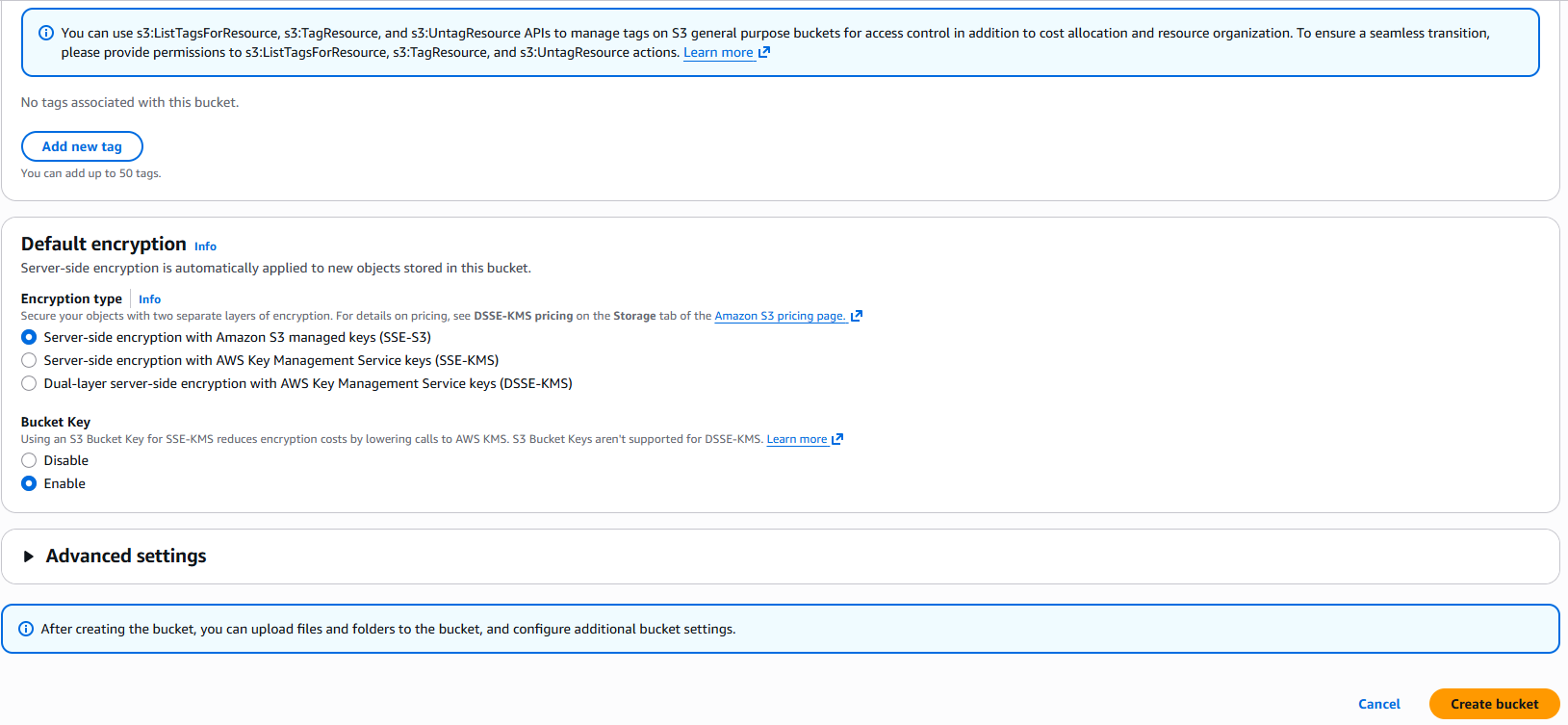
Create an AWS Glue Catalog Database for Storing Metadata
- In AWS Glue, select Data catalog, Databases.
- Click on
Add database.
- Define a database name and click on
Create database.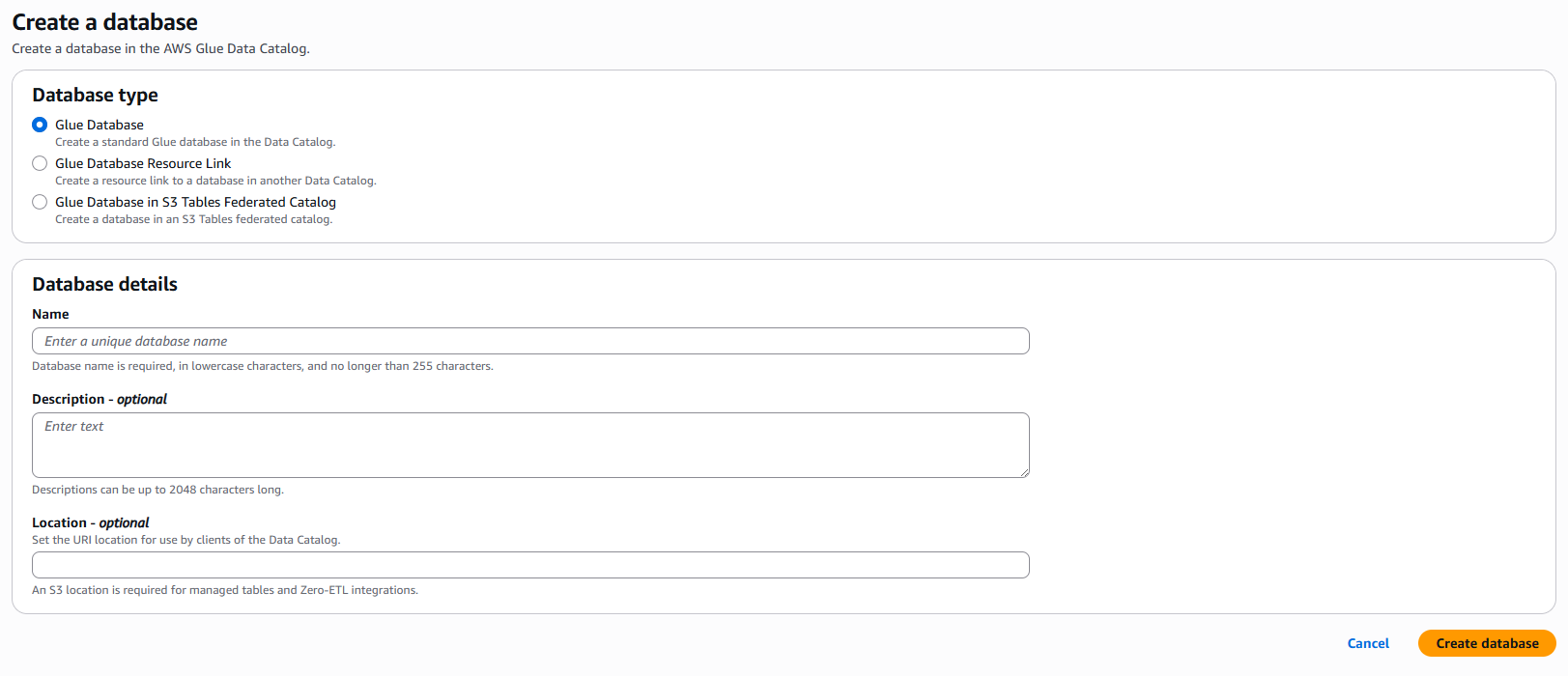
Store Teradata credentials in AWS Secrets Manager
- In AWS Secrets Manager, select
Create new secret.
- The secret should be an
Other type of secretwith the following keys and values according to your Teradata instance:- USERNAME
- PASSWORD
In the case of Teradata Trial, the user is always "demo_user," and the password is the one you defined when creating your Teradata Trial environment.
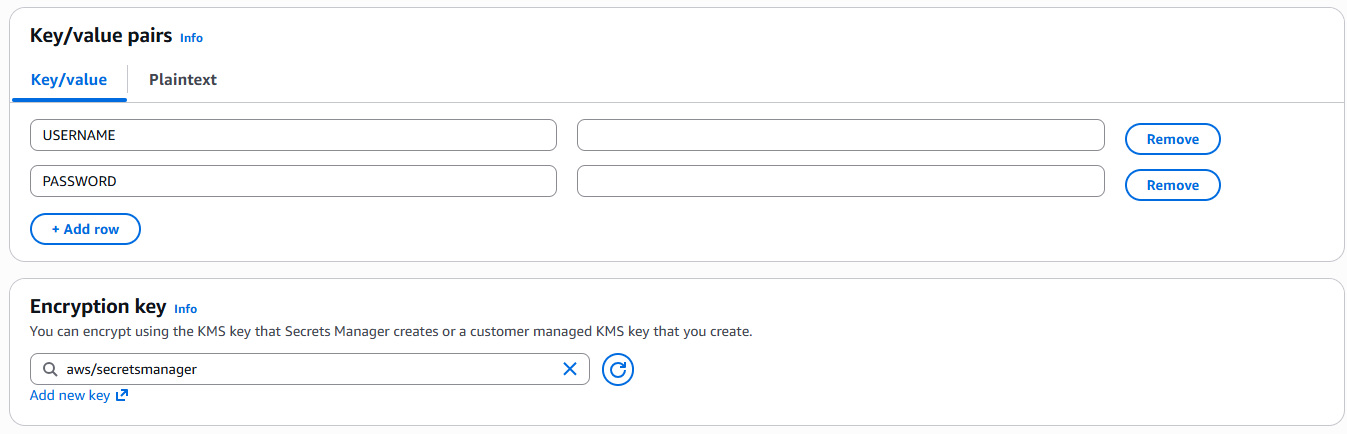
- Assign a name to the secret.
- The rest of the steps can be left with the default values.
- Create the secret.
Create an AWS Glue Service Role to Assign to ETL Jobs
The role you create should have access to the typical permissions of a Glue Service Role, but also access to read the secret and S3 bucket you've created.
-
In AWS, go to the IAM service.
-
Under Access Management, select
Roles. -
In roles, click on
Create role.
-
In select trusted entity, select
AWS serviceand pickGluefrom the dropdown.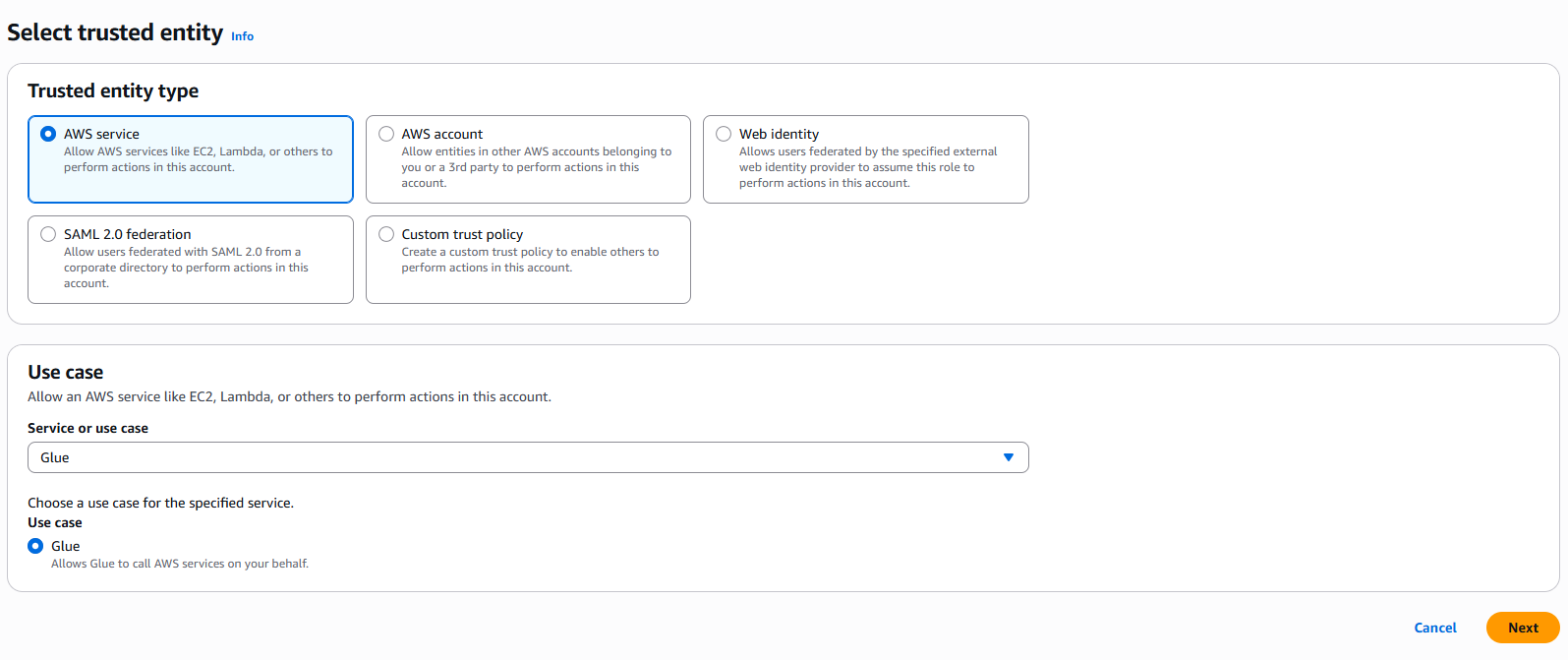
-
In add permissions:
- Search for
AWSGlueServiceRole. - Click the related checkbox.
- Search for
SecretsManagerReadWrite. - Click the related checkbox.
- Search for
-
In Name, review, and create:
- Define a name for your role.
- Click on
Create role.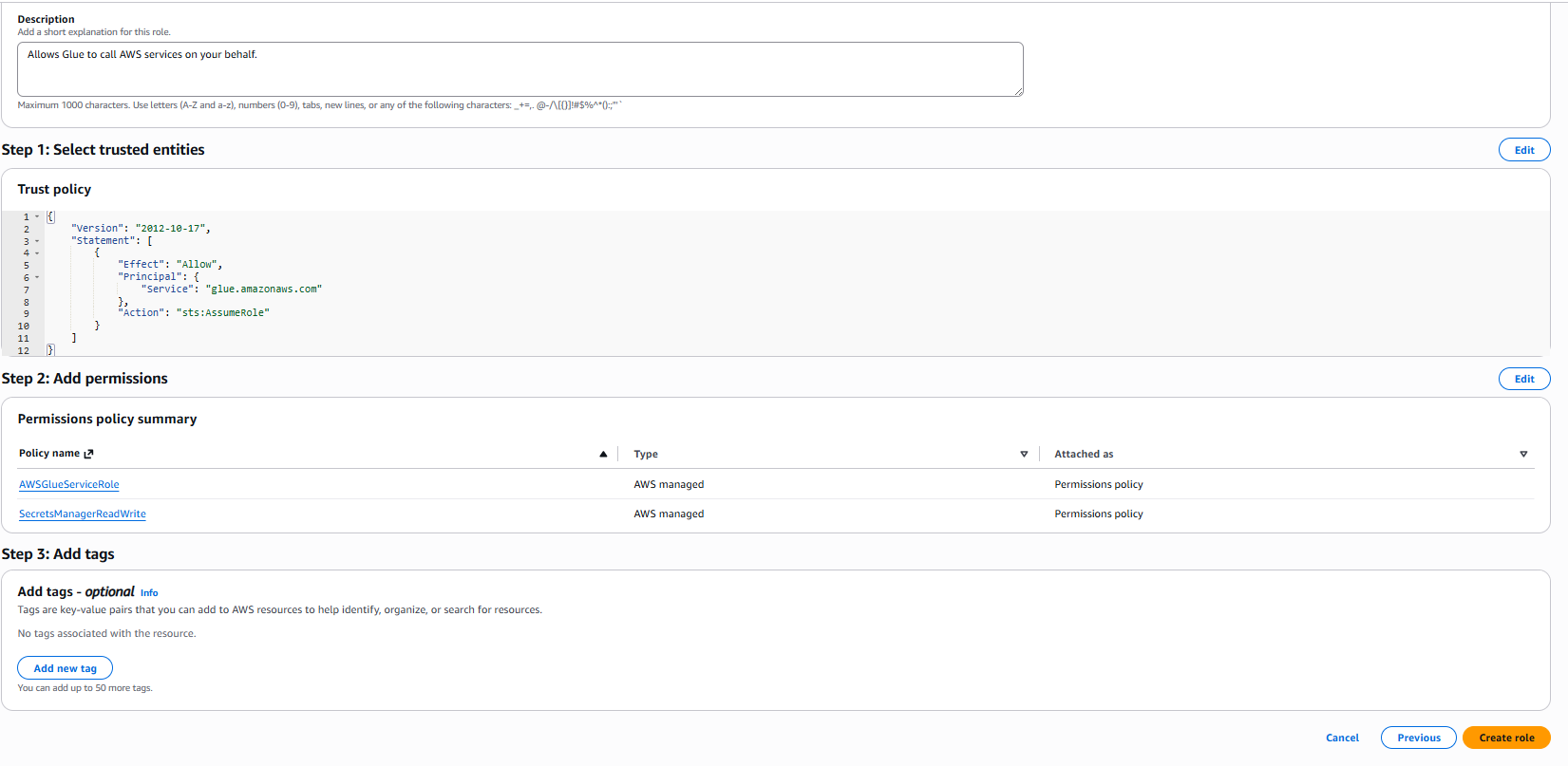
-
Return to Access Management, Roles, and search for the role you've just created.
-
Select your role.
-
Click on
Add permissions, thenCreate inline policy. -
Click on
JSON. -
In the Policy editor, paste the JSON object below, substituting the name of the bucket you've created.
- Click
Next.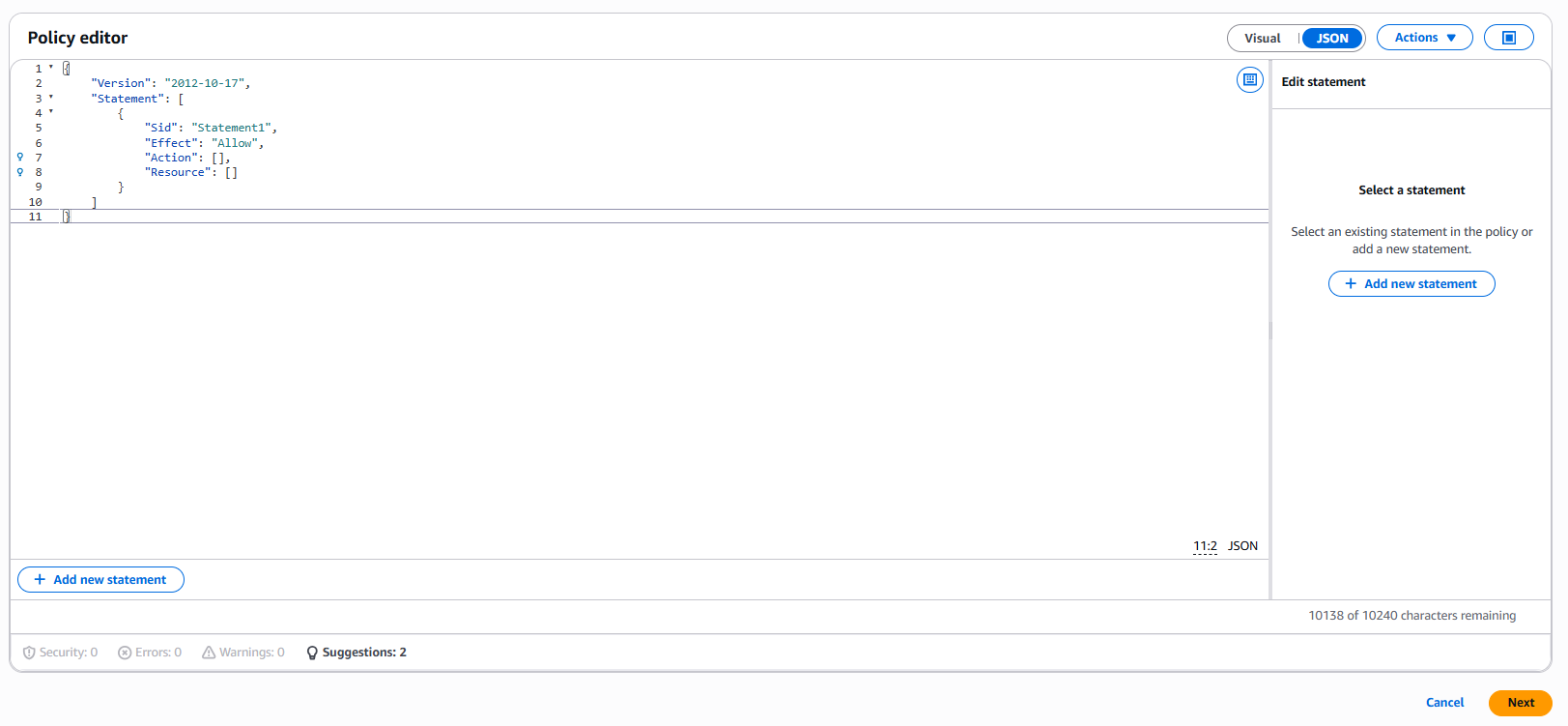
- Assign a name to your policy.
- Click on
Create policy.
Create a connection to a Teradata Instance in AWS Glue
- In AWS Glue, select
Data connections.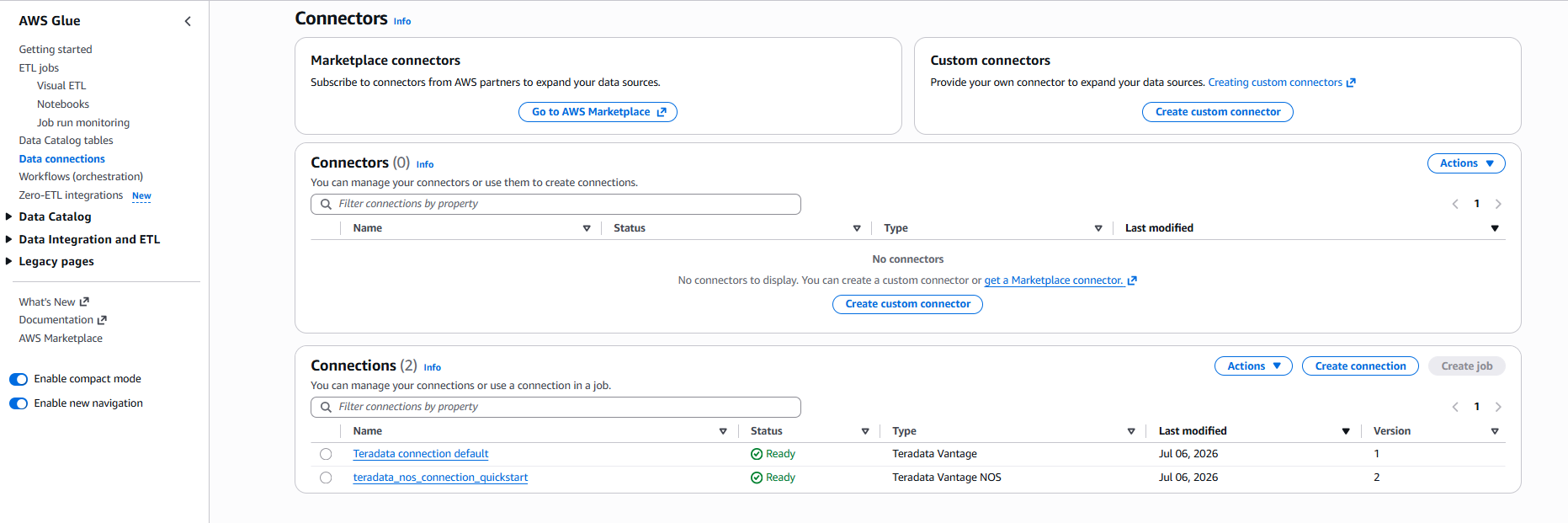
- Under Connectors, select
Create connection. - Search for and select the Teradata data source, as shown in the image.
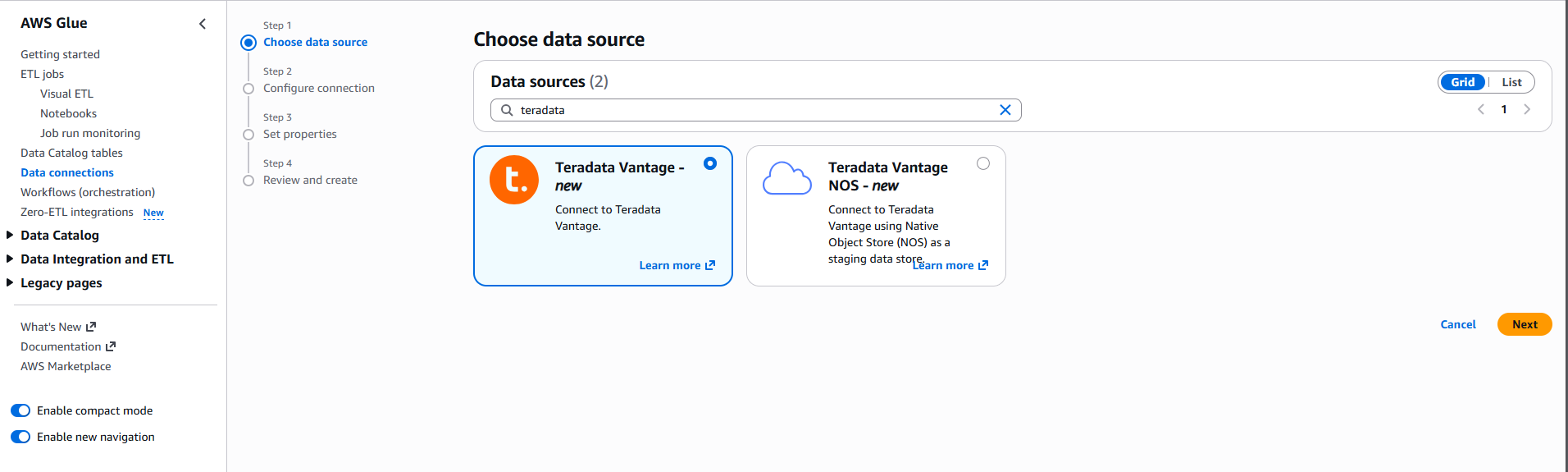
- Enter the information required by the dialog box.
- Select the AWS Secret created in the previous step.
- Name your connection and finish the creation process.
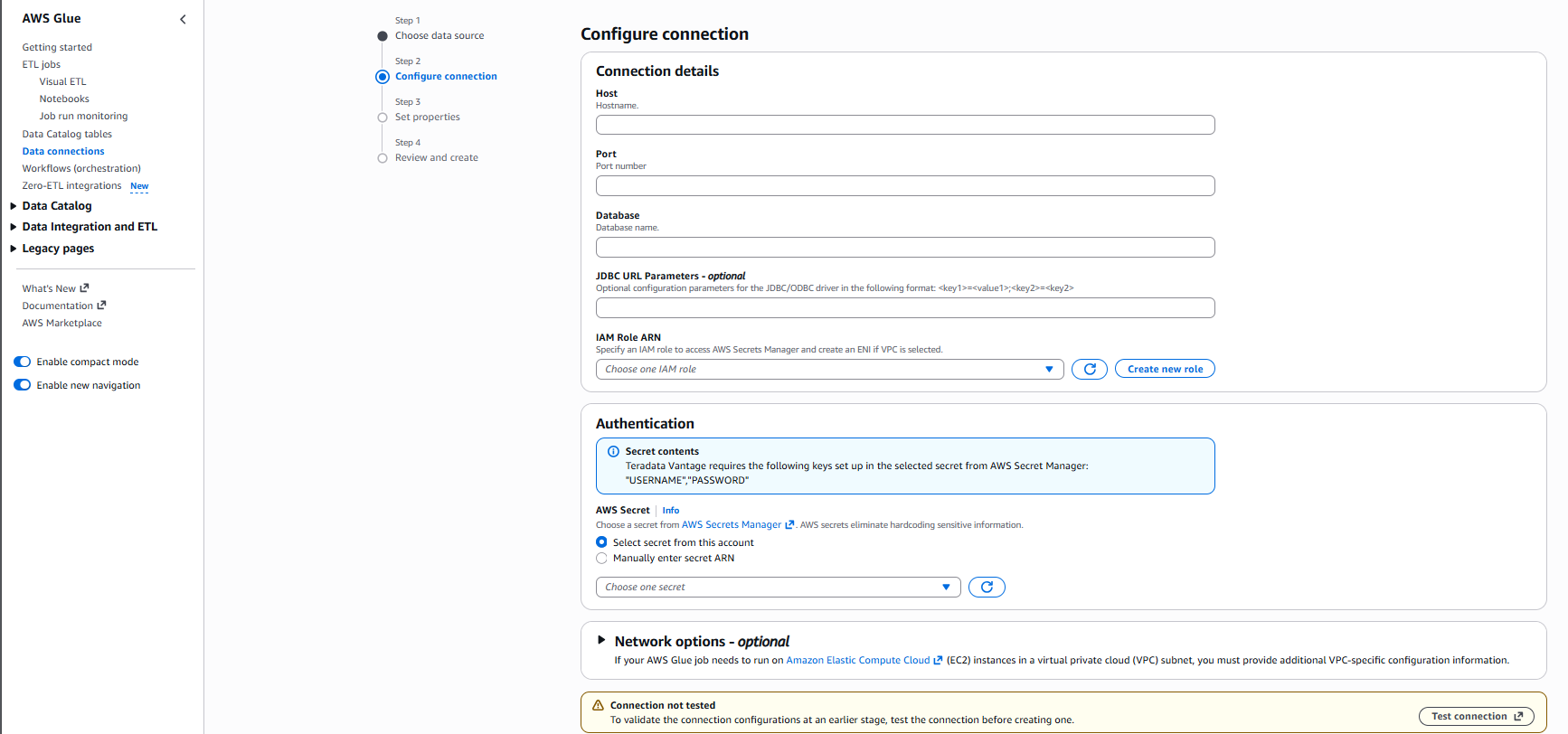
Create an AWS Glue Job
- In AWS Glue, select
ETL Jobsand click onScript editor.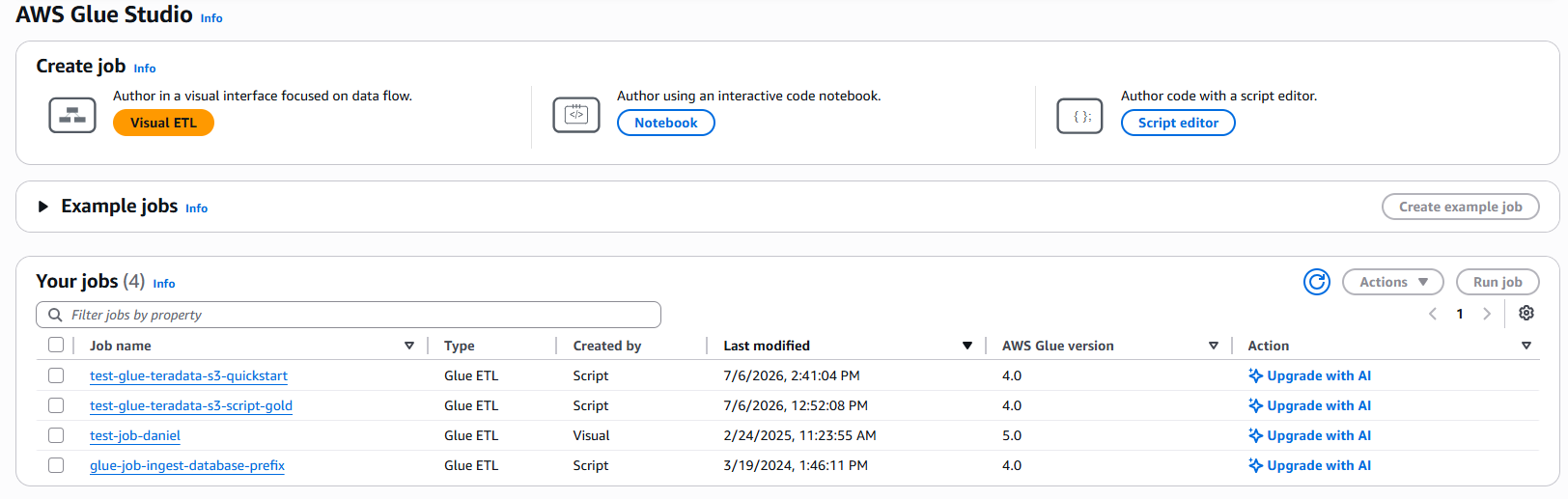
- Select
Sparkas the engine and choose to start fresh.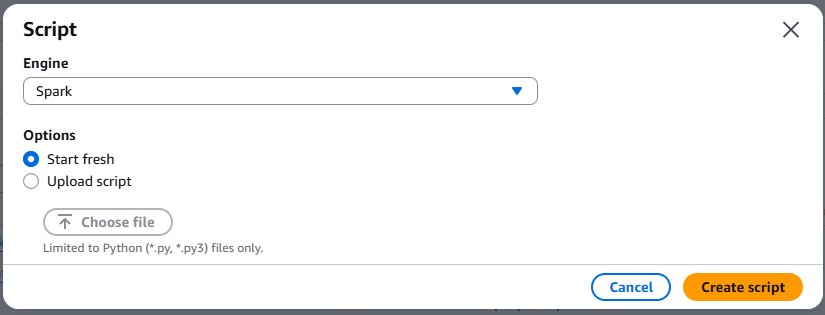
Draft a script for automated ingestion and cataloging of Teradata data into Amazon S3
- Copy the following script into the editor.
- The script requires the following modifications:
- Substitute the name of your S3 bucket.
- Substitute the name of your Glue catalog database.
- Substitute the name of the Teradata Connection with the one you've just created.
- If you are not following the example in the guide, modify the database name and the tables to be ingested and cataloged.
- For cataloging purposes, only the first row of each table is ingested in the example. This query can be modified to ingest the whole table or to filter selected rows.
- The script requires the following modifications:
-
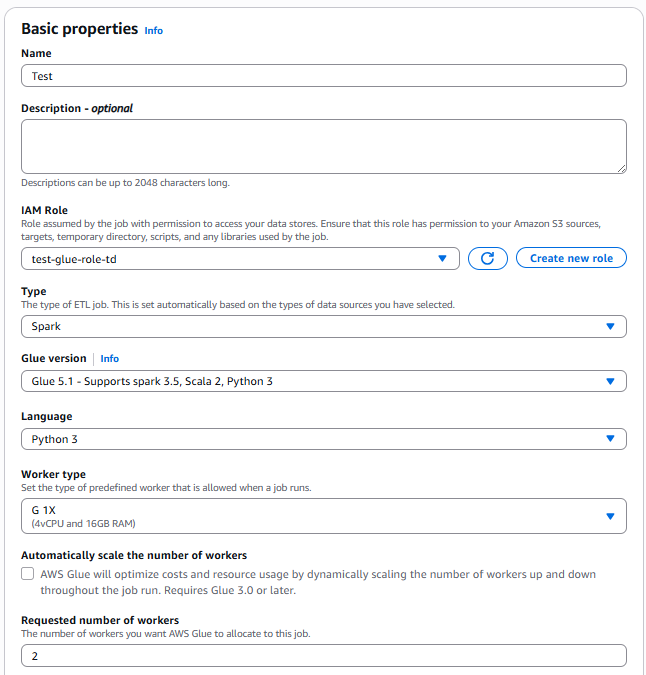
In Job details, Basic properties:
- Assign a name to your script
- Select the IAM role you created for the ETL job.
- For testing, select "2" as the Requested number of workers, this is the minimum allowed.
-
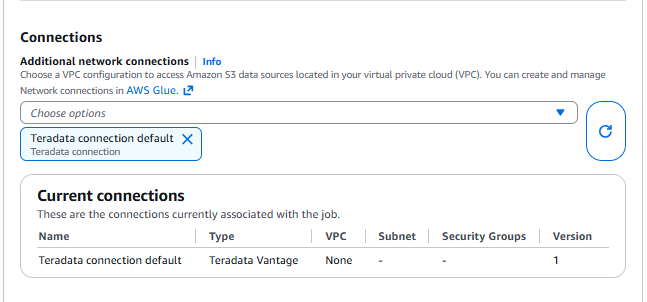
In
Advanced properties,Connectionsselect your connection to Teradata.
The connection created must be referenced twice, once in the job configuration, once in the script itself.
- Click on
Save. - Click on
Run. - The ETL job takes a couple of minutes to complete, most of this time is related to starting the Spark cluster.
Checking the Results
- After the job is finished:
- Go to Data Catalog, Databases.
- Click on the catalog database you created.
- In this location, you will see the tables extracted and cataloged through your Glue ETL job.
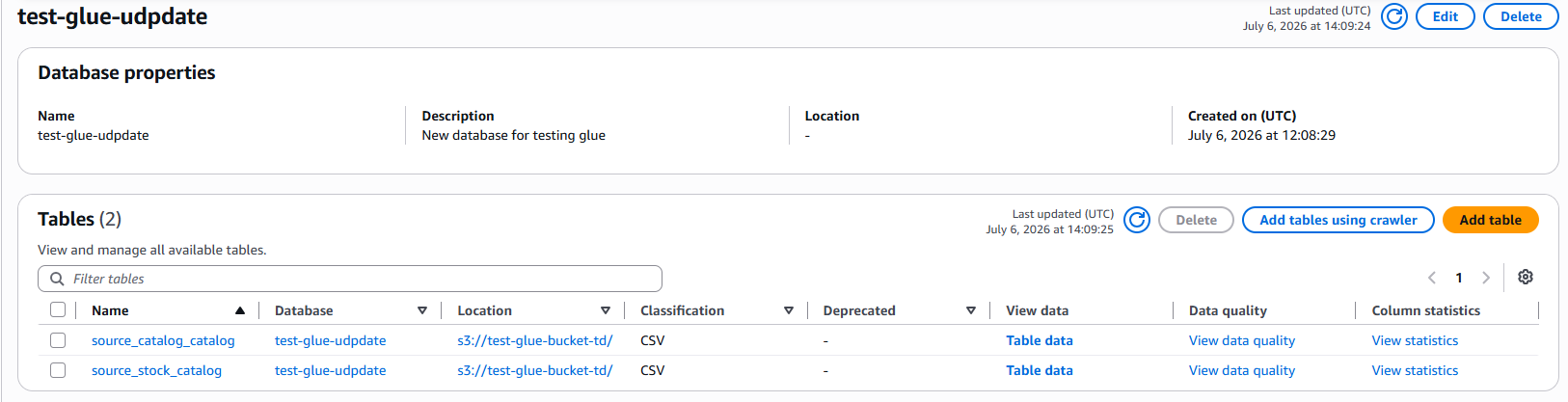
- All tables ingested are also present as compressed files in S3. Rarely, these files would be queried directly. Services such as AWS Athena can be used to query the files relying on the catalog metadata.
Summary
In this quick start, we learned how to ingest and catalog data from Teradata to Amazon S3 with AWS Glue Scripts.